Most website builders hand you a blank canvas, a sidebar with three hundred options and a cheerful "Let's get started!". Then you spend your Sunday dragging boxes around, wondering why your site still looks like everybody else's. The Yclas AI page builder works the other way round. You say what you want, in your own words, and an AI designer builds it in a draft. You look at it on a computer, a tablet and a phone. If you like it, you press Publish. If you don't, you say so, and it tries again.
This is the complete guide to everything the builder can do: every panel, every button worth knowing and every trick we've seen owners use. It's long on purpose. Read it top to bottom once, or jump to the part you need from the menu on the side. There are 49 screenshots, all of them from the real Studio, so you know exactly what you'll see when you open it.
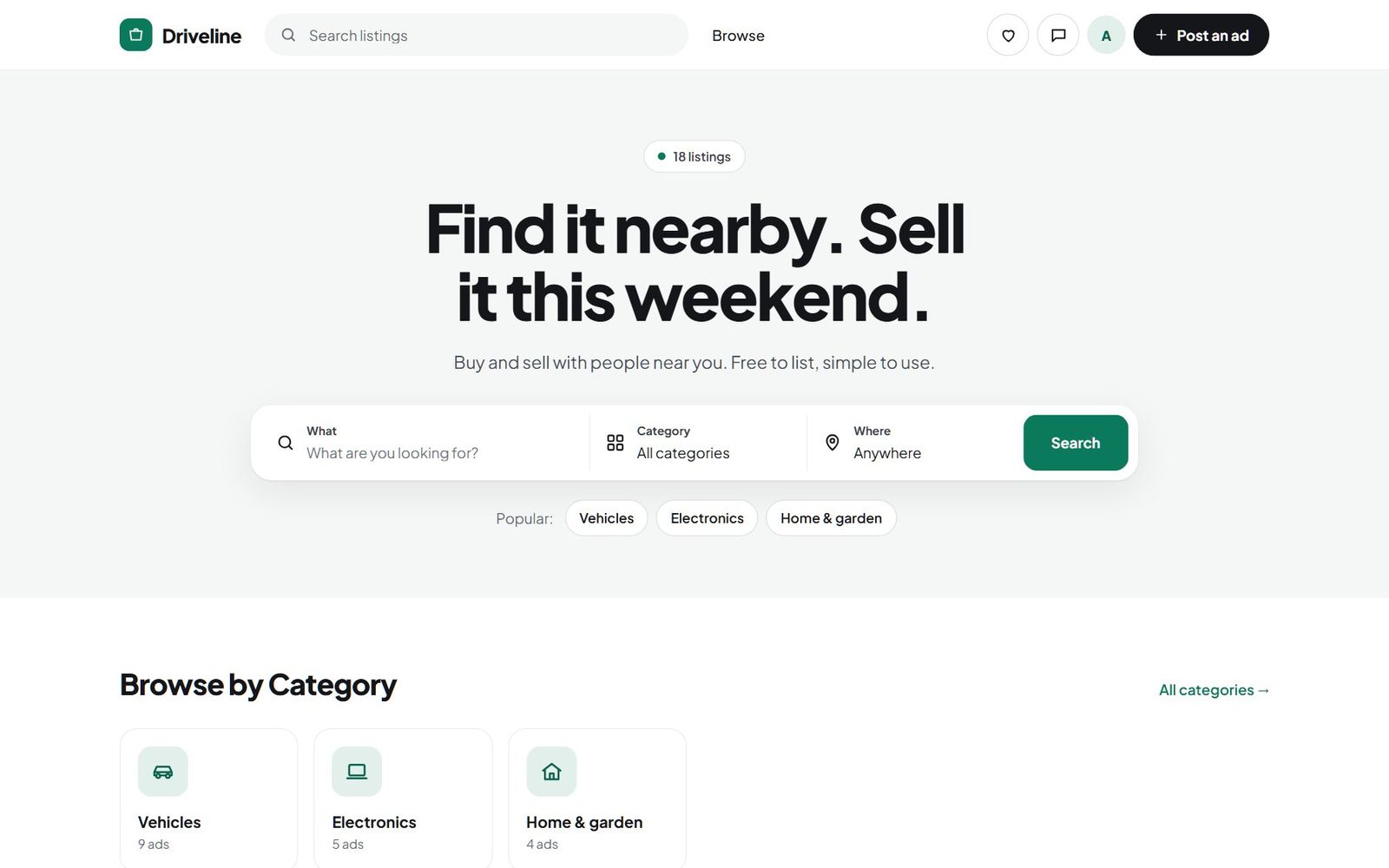
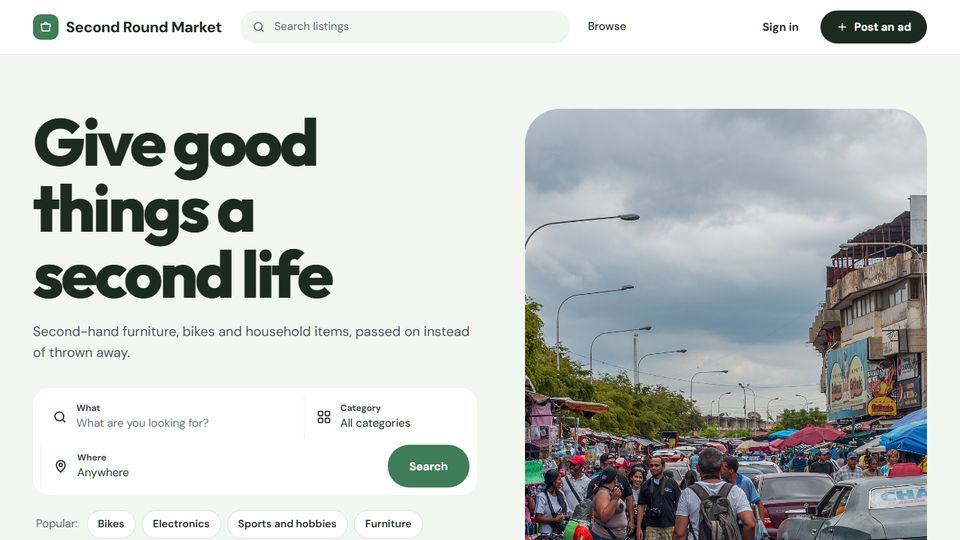
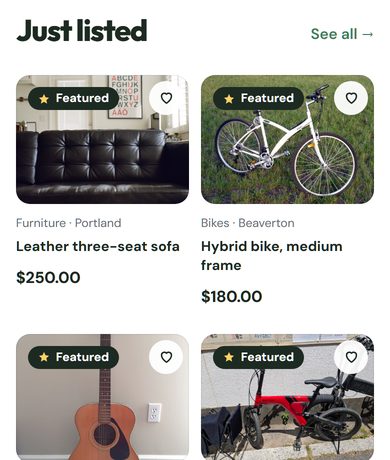
Throughout this guide we'll follow one site: Driveline, a demo marketplace where people buy and sell cars, bikes, phones and furniture in their own area. It starts on the plain Nova design you see above. Ten minutes and a handful of messages later, it looks like this:
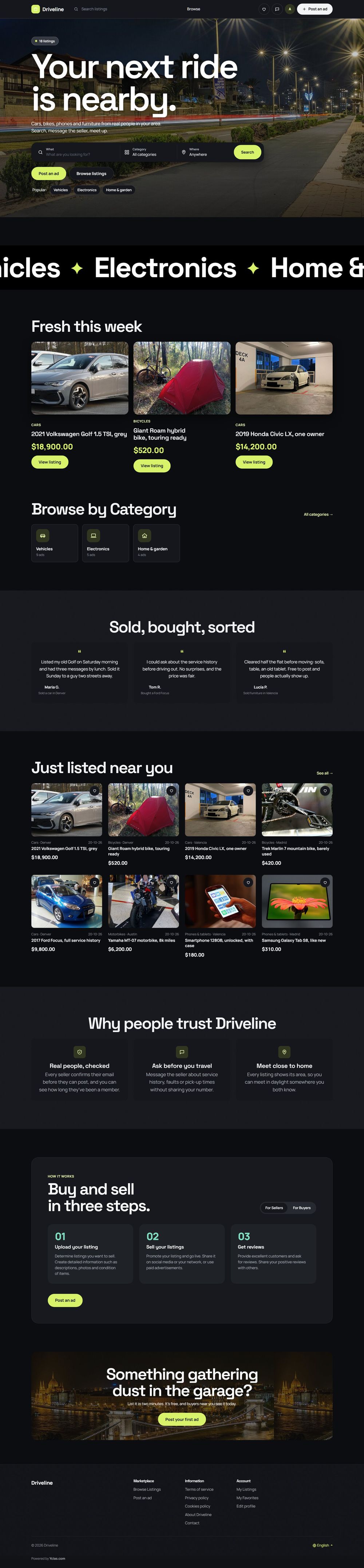
A note on the screenshots: they are real renders of a Yclas demo site with made-up listings. Where the AI replies in the chat, the replies were written for the demo and run through the real Studio, so every card, button and change on the page is exactly what the builder draws. The AI on your own site writes its own replies, so the wording will differ.
In short
- The Studio lets you redesign a Yclas site by chatting with an AI designer or editing by hand, always on a draft that goes live only when you press Publish.
- For a big redesign the AI proposes two or three directions you can Try for free, then builds the page and checks it on computer and phone.
- You can start from any of 109 ready-made looks, or use one as a template that builds a whole home page with your real listings.
- Every AI turn can be undone, every published version is kept in History, and a check after publishing restores the old site if anything breaks.
- Editing by hand is unlimited, while AI edits are 5 per trial, 15 a month on Starter, 75 on Professional and 150 on Marketplace.
What the AI page builder is, in 30 seconds
The page builder is a full-screen editor for your Yclas site called the Studio. It has two ways of working that share the same draft:
- The AI designer. A chat on the left. You type "make it darker and more premium" or "add a FAQ to the About page" and the AI makes the change. It can add, edit, move and remove sections, change your colours and fonts, write and translate text, create pages, find photos and rename categories.
- Editing by hand. Everything the AI can do, you can do yourself: click a heading on the page and type, drag a section to a new place, pick a colour, upload a photo. Editing by hand never uses up any AI allowance.
Three ideas run through the whole builder, and once you have them, everything else makes sense:
- You always work on a draft. Nothing you or the AI does reaches your visitors until you press Publish. The badge at the top says Draft while you have unpublished changes and Live when the draft matches the site.
- Everything can be undone. Every change has an undo, every AI turn has an Undo button, and every published version is kept so you can restore it.
- Your listings stay real. The builder designs around your own content. Listing rows, spotlights, category tiles, live stats and top sellers all pull from your site, so a redesign never shows fake ads.
Where to find it
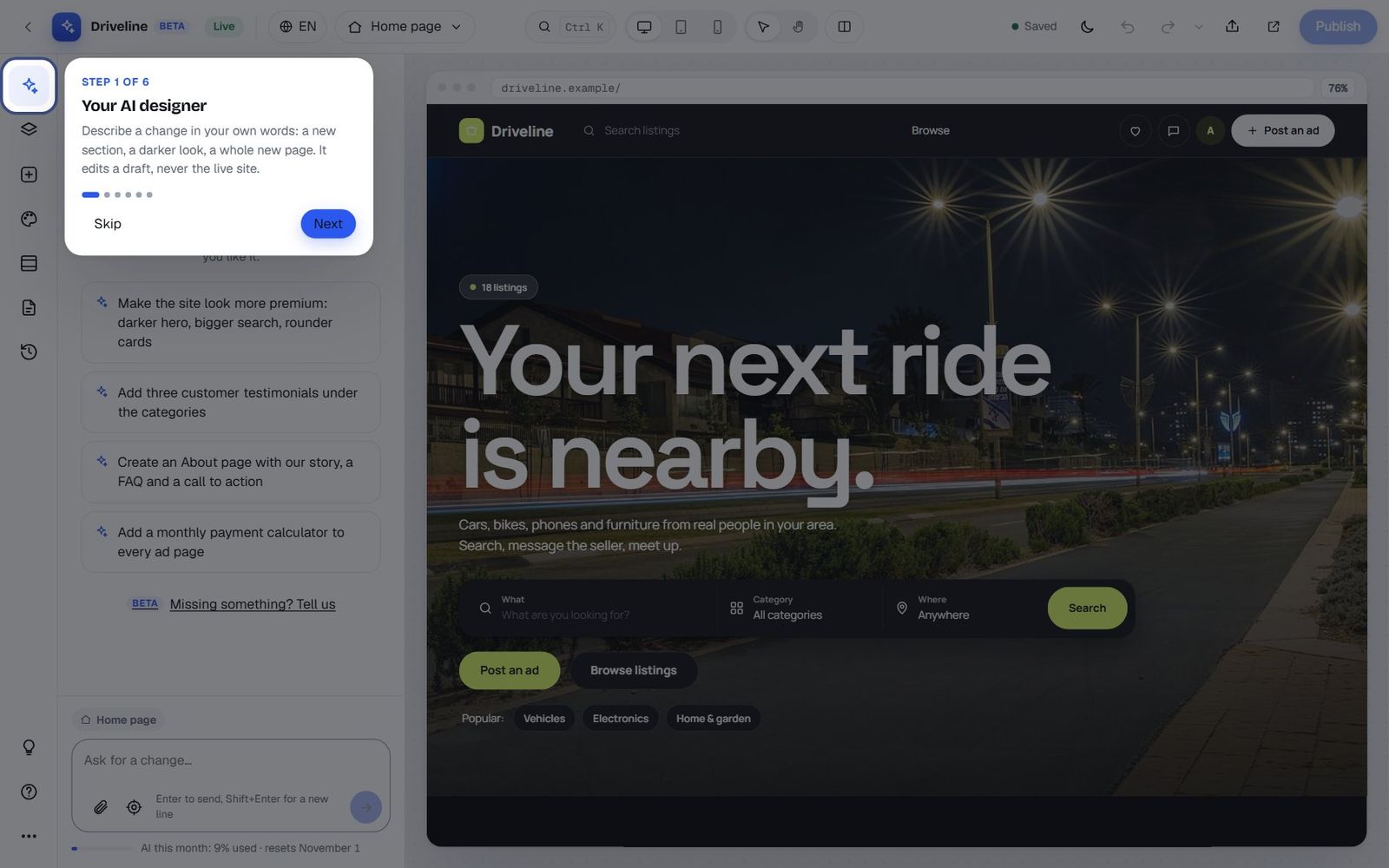
In your admin panel, open AI in the menu and choose AI page builder, or click Page builder on the Design page. The Studio opens full screen. The first time, a six-step tour walks you through the main parts: Your AI designer, Click to edit, Add sections, Your look, Find anything and Publish when ready. You can skip it and bring it back any time from the More menu with Take the tour.
The page builder draws on the Nova theme, which has been the default for new Yclas sites since October 2026. If your site uses an older theme, the Studio still opens and tells you so. You can still rename your site, change its logo, edit categories, locations and pages, and set the theme's main colour, but the sections, looks and layouts need Nova. Switching to Nova from Design › Themes keeps your listings, users and settings.
A real makeover, start to finish
Before we go through every panel, let's watch the whole thing work once. This is the exact sequence that turned the plain Driveline site into the one above.
Step 1: Open the Studio and say what you want
The Studio opens on the AI designer. On the left is the chat with four ideas to get you going. On the right is a live preview of your home page, drawn exactly as your visitors will see it. Along the far left is the rail with every panel, and along the top are the device buttons, Compare, undo and redo, and Publish.
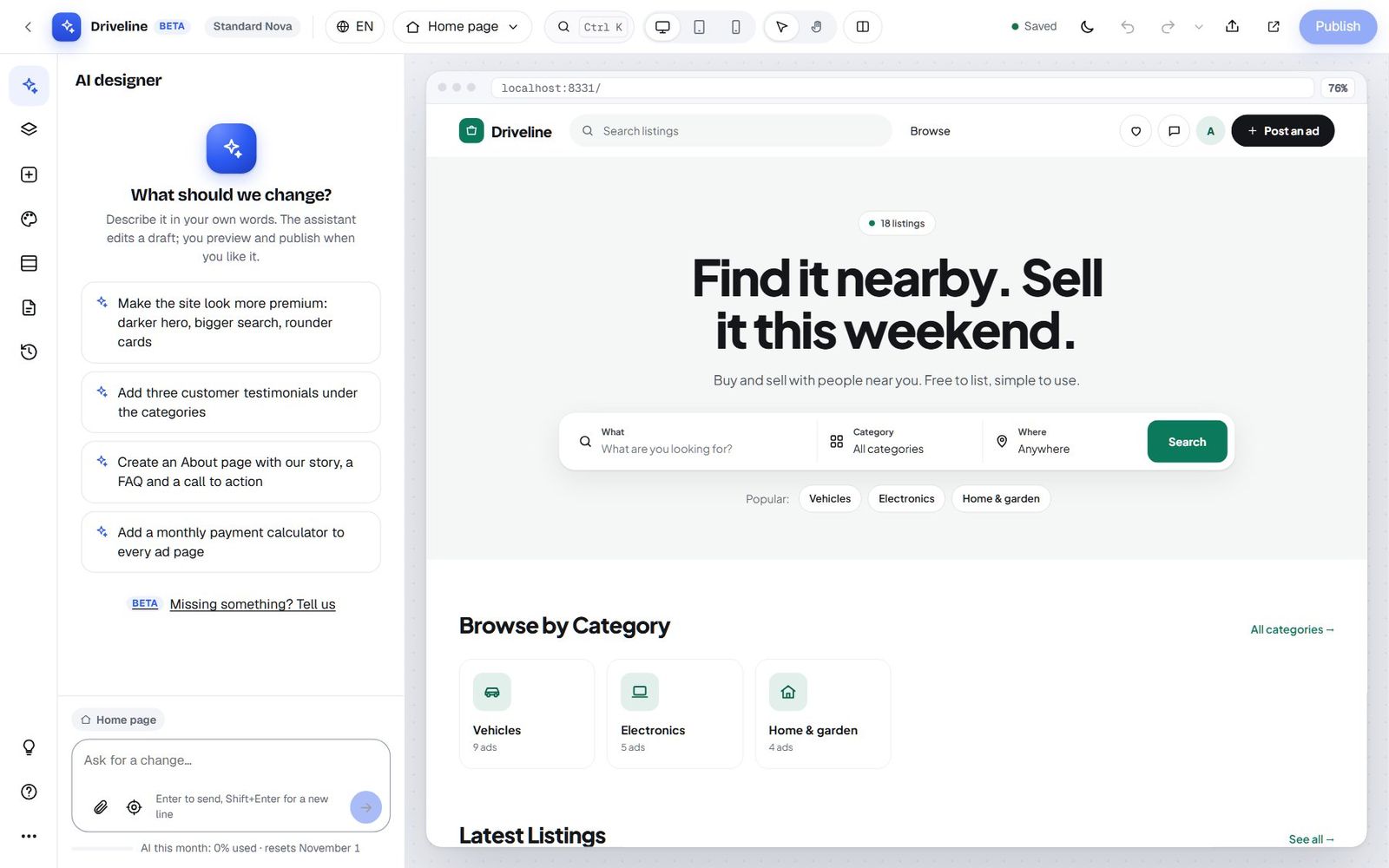
The four starter ideas are worth trying even if you have something else in mind, because they show the range: "Make the site look more premium: darker hero, bigger search, rounder cards", "Add three customer testimonials under the categories", "Create an About page with our story, a FAQ and a call to action" and "Add a monthly payment calculator to every ad page". Click one and it drops into the message box, ready to send or to edit first.
For Driveline, we wrote our own:
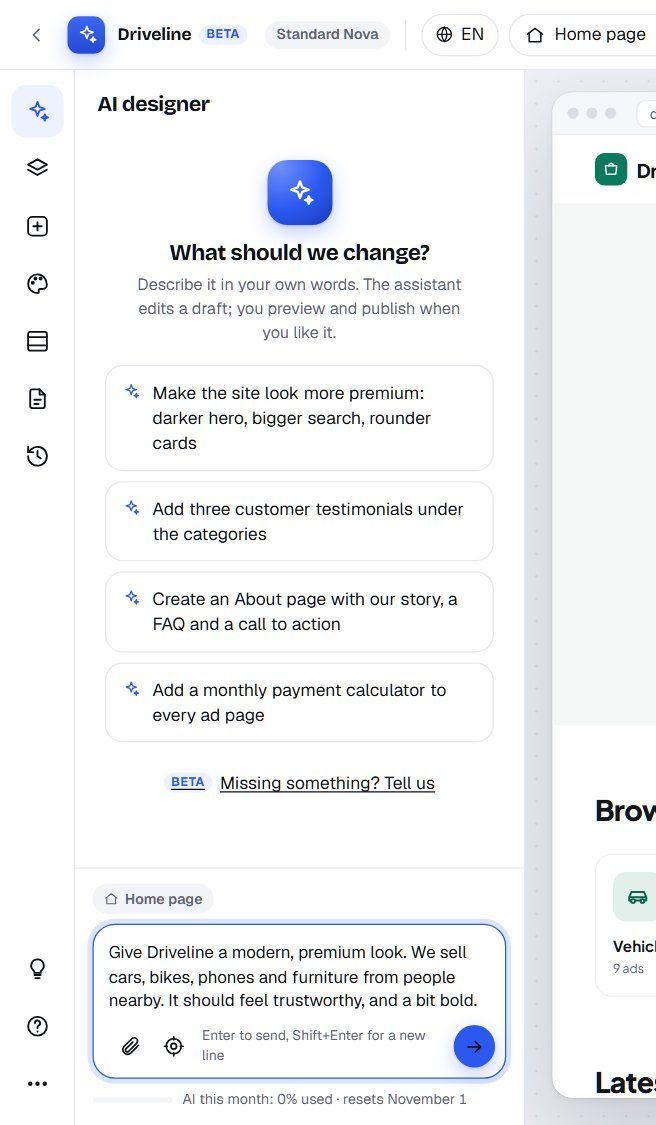
Give Driveline a modern, premium look. We sell cars, bikes, phones and furniture from people nearby. It should feel trustworthy, and a bit bold.
Notice what that message does well. It says who the site is for (people buying and selling nearby), what is sold (cars, bikes, phones, furniture) and how it should feel (trustworthy, a bit bold). It doesn't say which font or which shade of blue. That's the AI's job.
Step 2: Pick a direction
For a big redesign, the AI doesn't just guess. It first reads your site (your categories, your listings, your languages), looks through the ready-made looks that suit your kind of marketplace, and then shows you two or three directions. Each direction has a name, a one-line summary of its mood and who it suits, a colour and font preview, and the home page it would build, top to bottom.
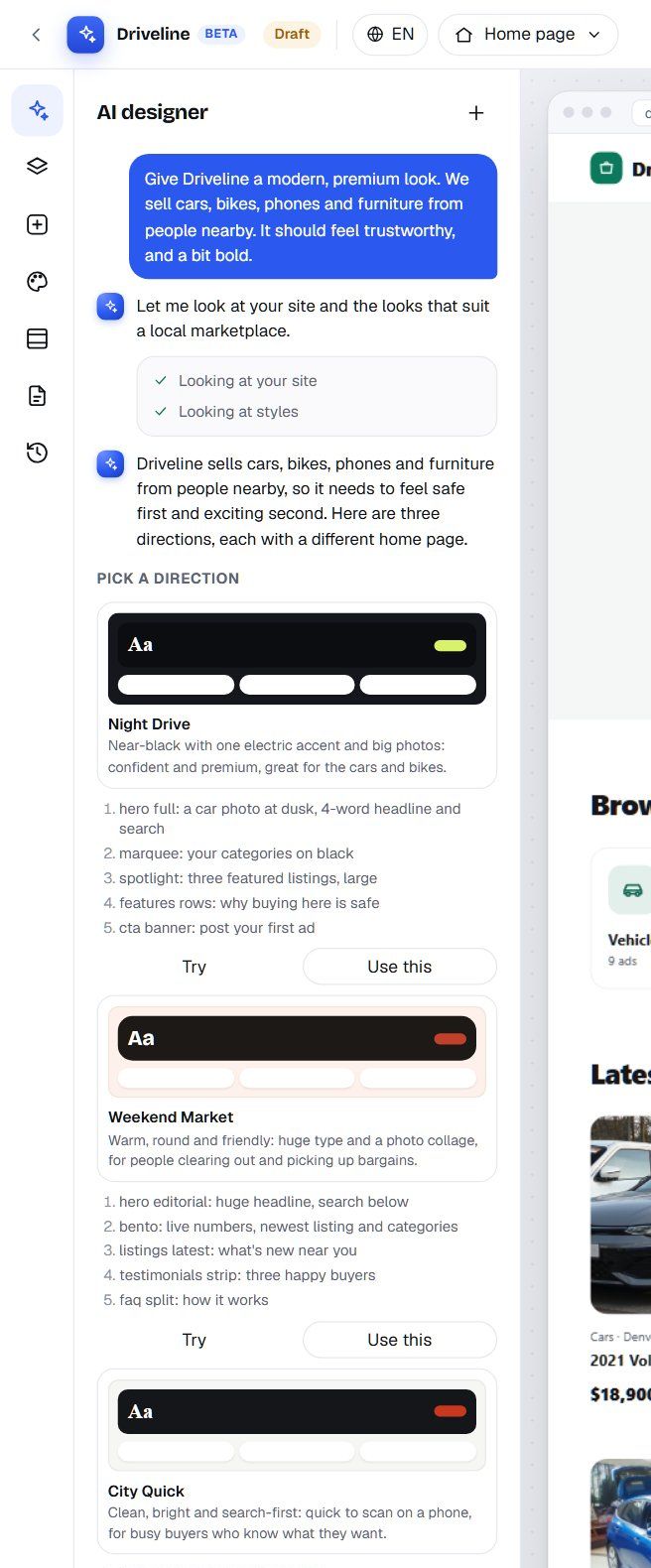
The directions differ in structure, not only in colour. Night Drive opens with a full-screen photo and a scrolling band of categories. Weekend Market opens with huge type and a bento grid of live numbers. City Quick is search first, with category chips and a stats band. The builder actually refuses directions that are the same page in a different colour, so you always get real choices.
Step 3: Try before you choose
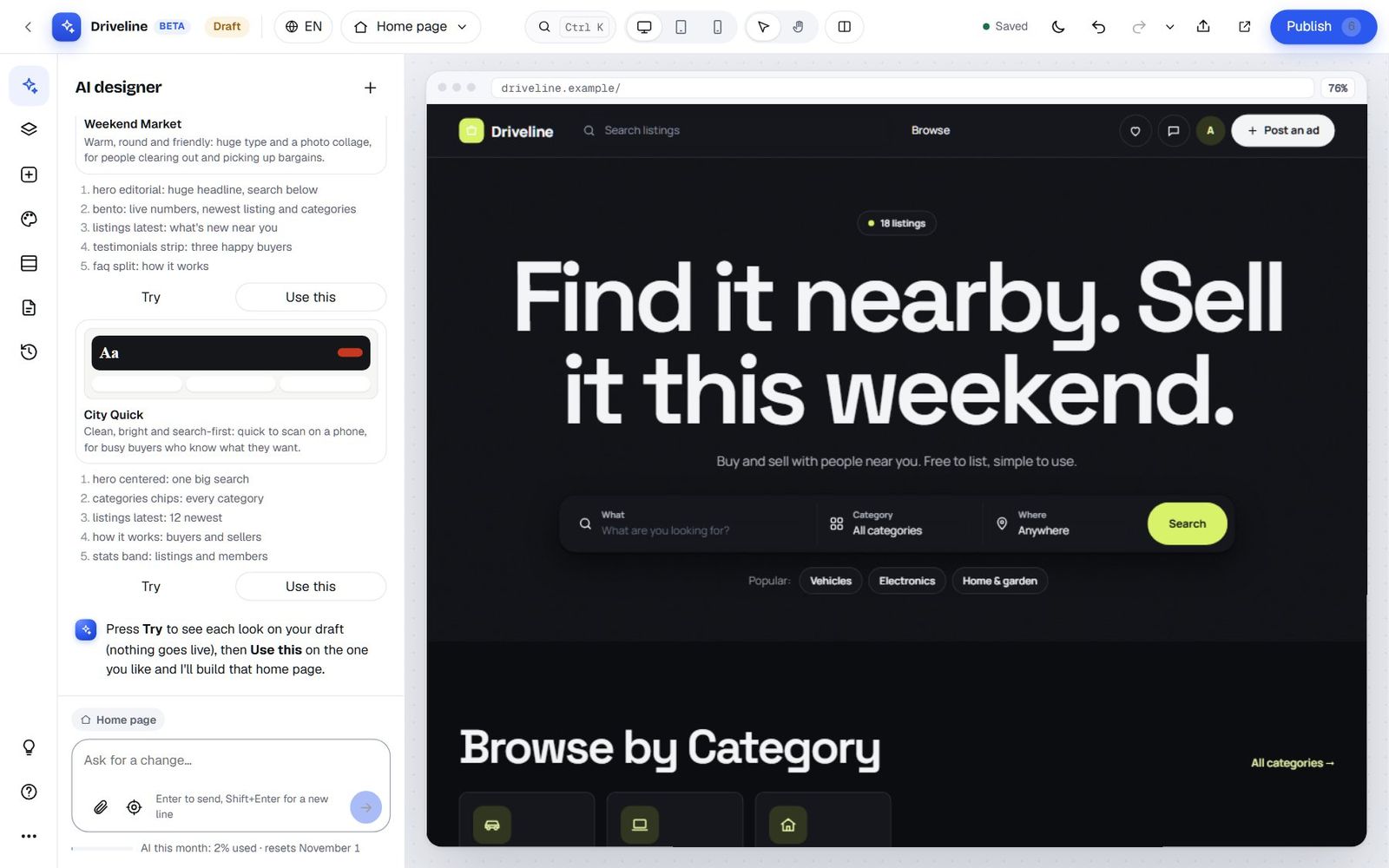
Each direction has two buttons. Try puts that look on your draft instantly, so you can see your own listings in it. Nothing goes live, and you can try all three in a row. Use this tells the AI to go ahead and build the full page.
Step 4: Let it build
We liked Night Drive and pressed Use this. The AI applied the look, then rebuilt the home page section by section. While it works, the chat shows a short line for each step it takes ("Adding a spotlight section", "Updating the listings section", "Removing the locations section") so you can follow along. When it's done, it tells you what it did and why, and a green bar says Changes are in your draft with an Undo button that rolls back the whole turn.
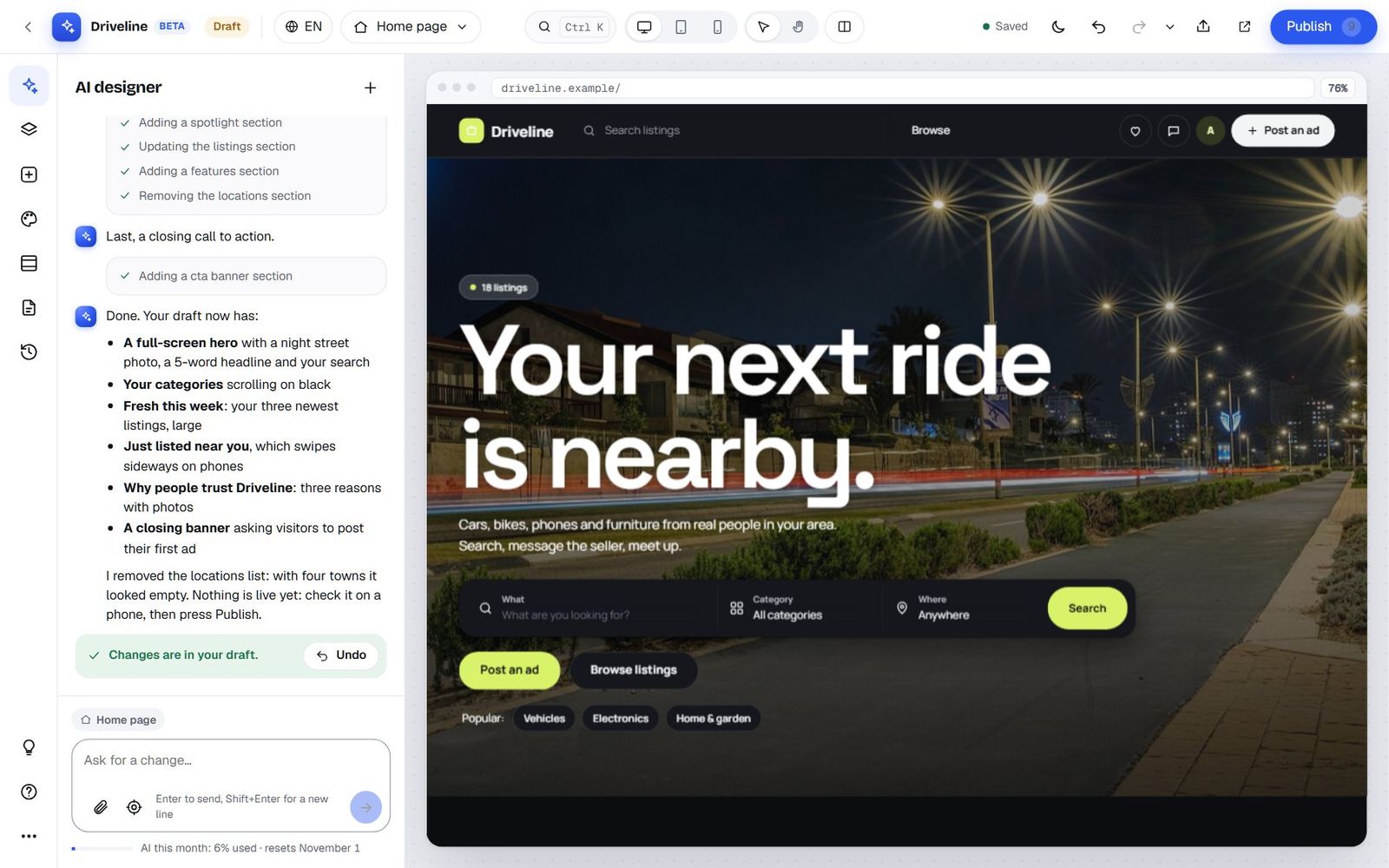
Look at the reasoning in the summary: "I removed the locations list: with four towns it looked empty." That's the kind of judgement call a designer would make. If you disagree, one message ("put the locations back") reverses it.
Step 5: Check it on a phone
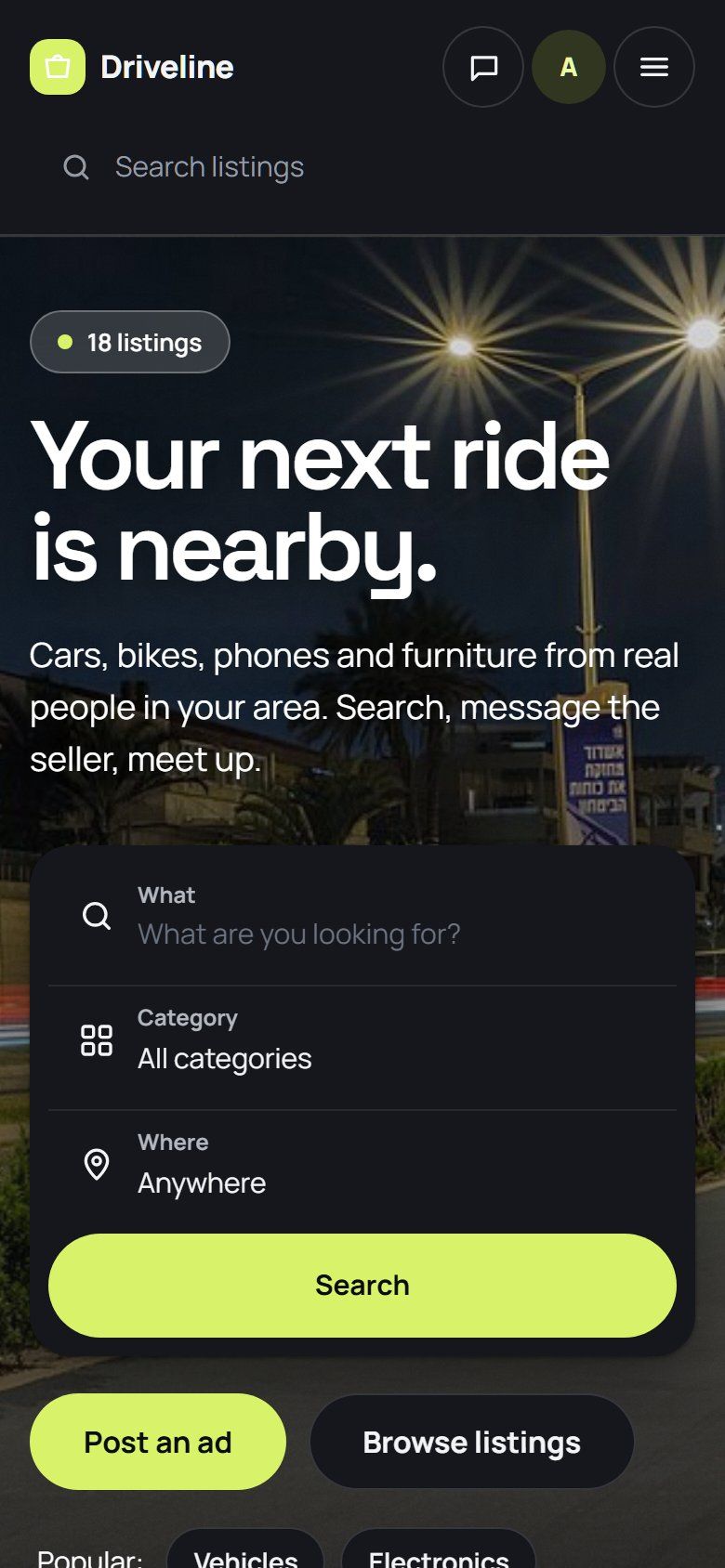
Many of your visitors will arrive on a phone, so the Studio makes checking easy. Press the phone button at the top and the preview redraws at phone width, with the real phone menu and search.
Step 6: Publish
Press Publish. A dialog lists what changed since the live version (here, 8 sections added on the home page and new colours and fonts), runs a few quick checks, and lets you add a short note so you can find this version later. We called it "Night Drive redesign". Press Publish again and it's live.
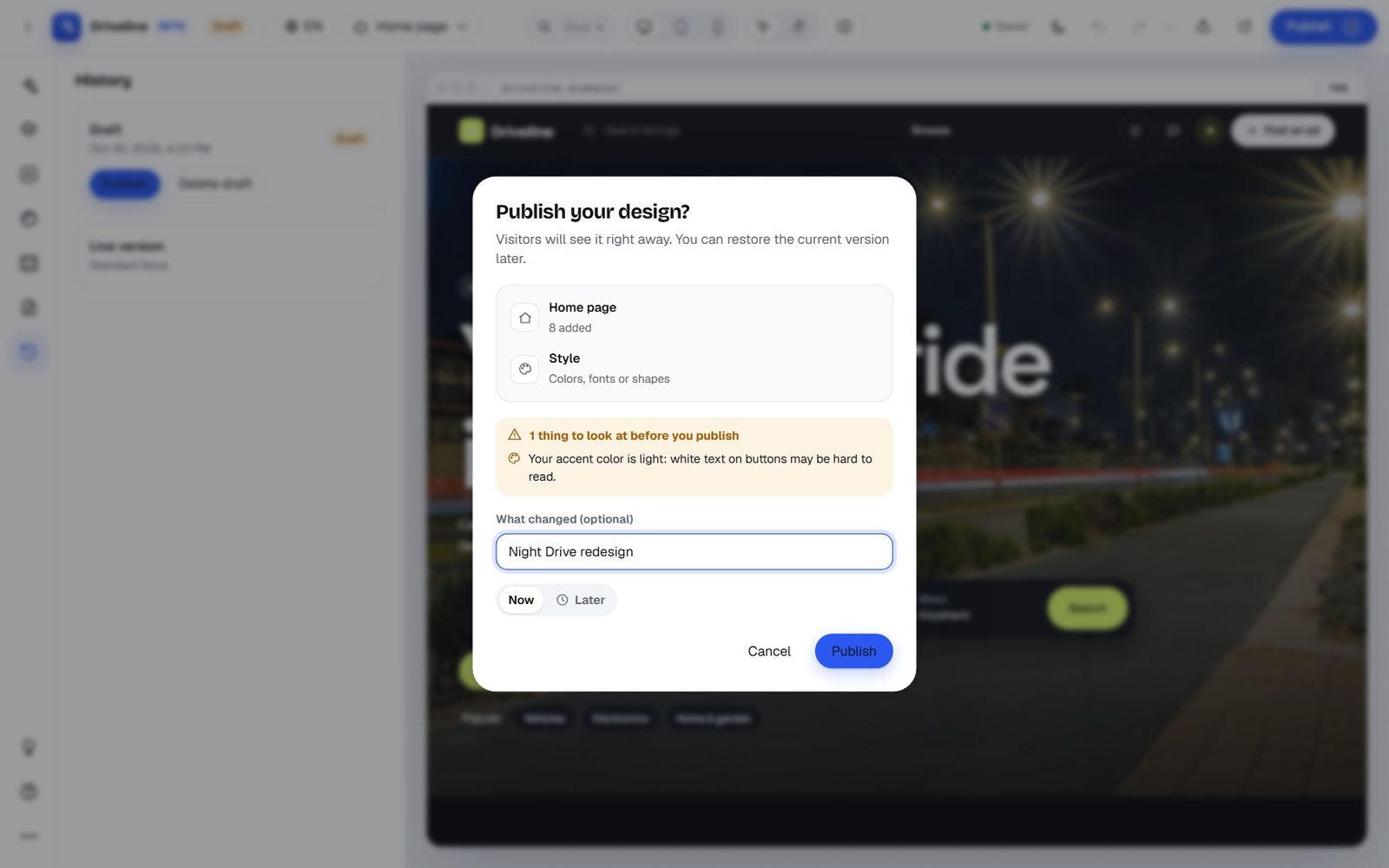
That's the whole loop: ask, pick, try, build, check, publish. The rest of this guide goes through each part in depth, starting with the part you'll use most.
The AI designer: how to talk to it
The AI designer is a chat, but it isn't a general chatbot. It's a designer with a specific set of tools for your site, and it knows which page you're on and which section you've selected. Here's how to get the most out of it.
It sees what you have open
Above the message box there's a small chip showing where you are: Home page, About Driveline, Listing pages. When you select a section, a second chip appears with its name, and the placeholder changes to "Ask for a change to the features…". The AI gets that context with your message, so "make this darker" means the section you selected, and "add a FAQ" means the page you're looking at. Close the section chip with its little × if you want to talk about the whole page again.
Point at exactly what you mean
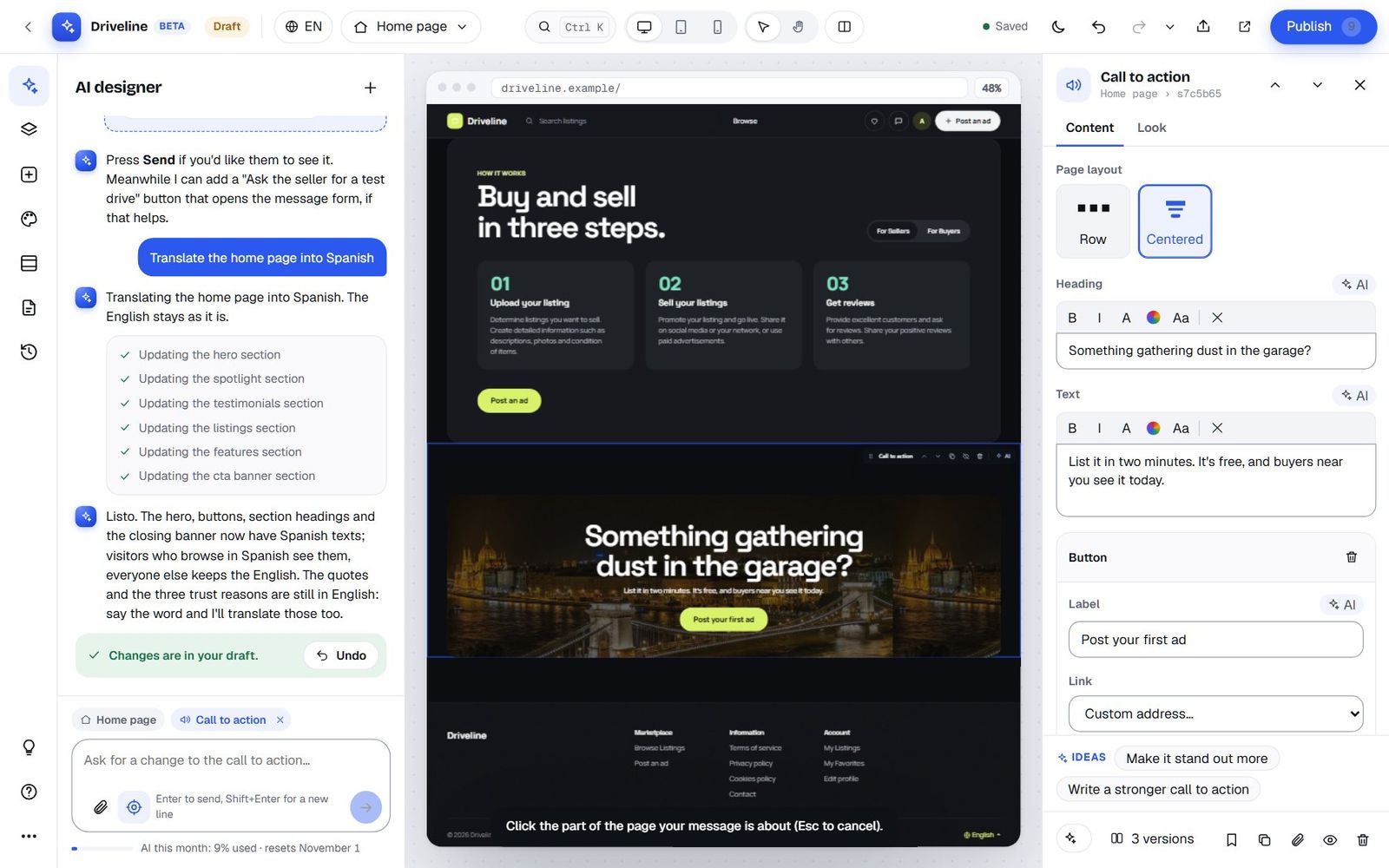
Sometimes "the third card" or "that button" is hard to describe. Press the target button next to the message box and the Studio says Click the part of the page your message is about (Esc to cancel). Click a heading, a photo, a button, a link, a block of text or a card in the preview, and the AI is told exactly which element you mean. Then type your message as usual: "make this one bigger", "use a different photo here", "this should link to the bikes category".
Show it a picture, or another website
The paperclip attaches an image to your message (JPG, PNG, WebP or GIF, up to your site's image size limit). You can also paste a screenshot straight into the box. Use it for things like:
- "Here's our logo. Build a colour scheme around it."
- "Use this photo of our showroom in the hero."
- "Make the home page feel like this screenshot."
Images you attach are saved to your media library, so you can use them again later. You can also just paste a link: "make it look like example.com". The AI opens the page in a real browser, looks at a screenshot of the top of it and takes its style: the type, colours, spacing, shapes and rhythm. It's told never to copy another site's texts, logos, photos or brand, so you get the feel without the legal headache.
Ask for directions when you're not sure
"Redesign the home page" is a big request with a thousand right answers. When you ask for something big and open, the AI shows you two or three directions first (you saw them in the makeover above) and waits for your pick. When you ask for something precise ("make the search button orange"), it just does it.
Ask for versions of one section
Not sure how a section should look? Select it and press 3 versions in the inspector, or type "show me some options for this section". The AI sends back two or three cards, each with a name and a short description of what it changes. Apply any of them with one click; the section's text stays the same, only the layout and look change.
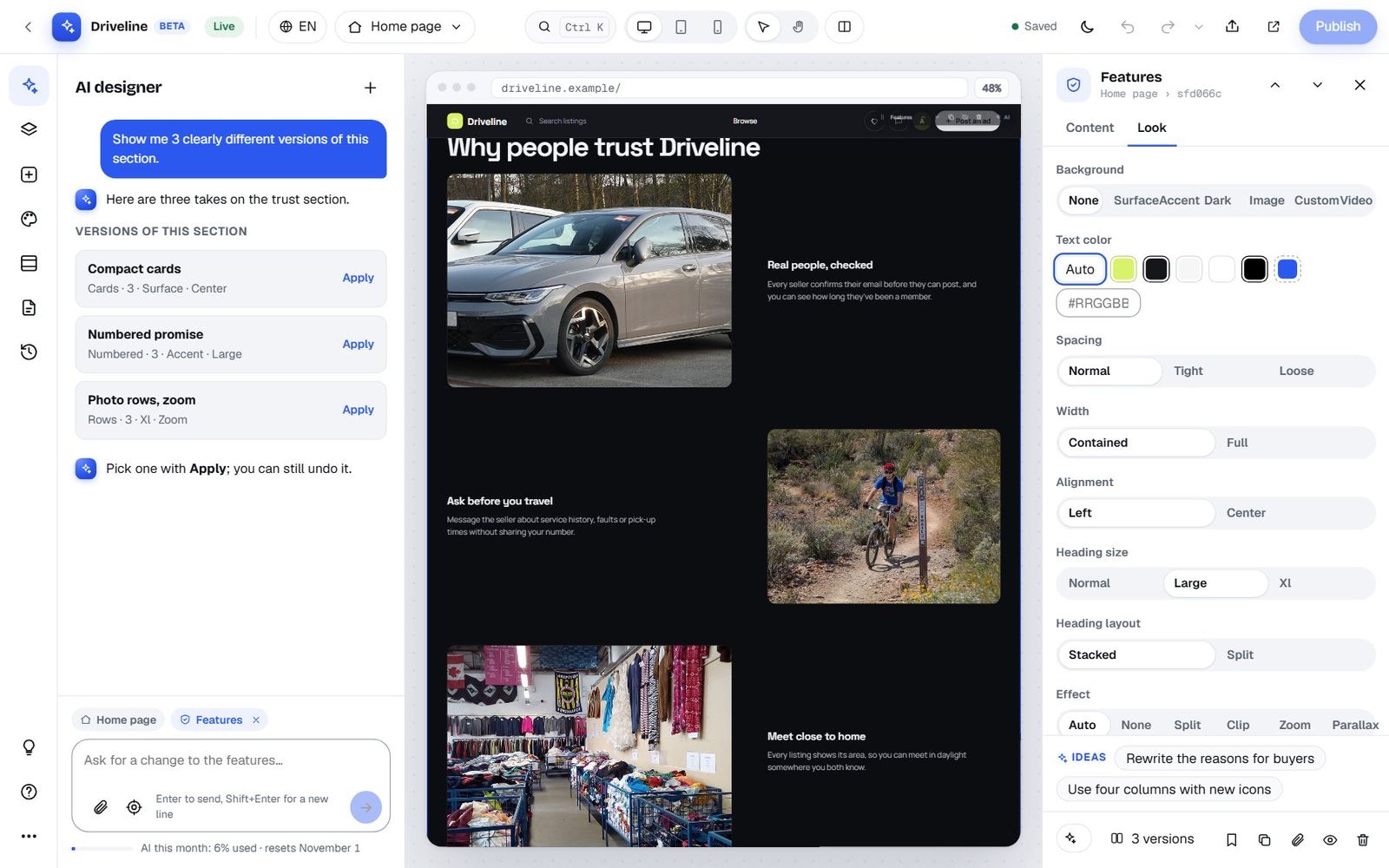
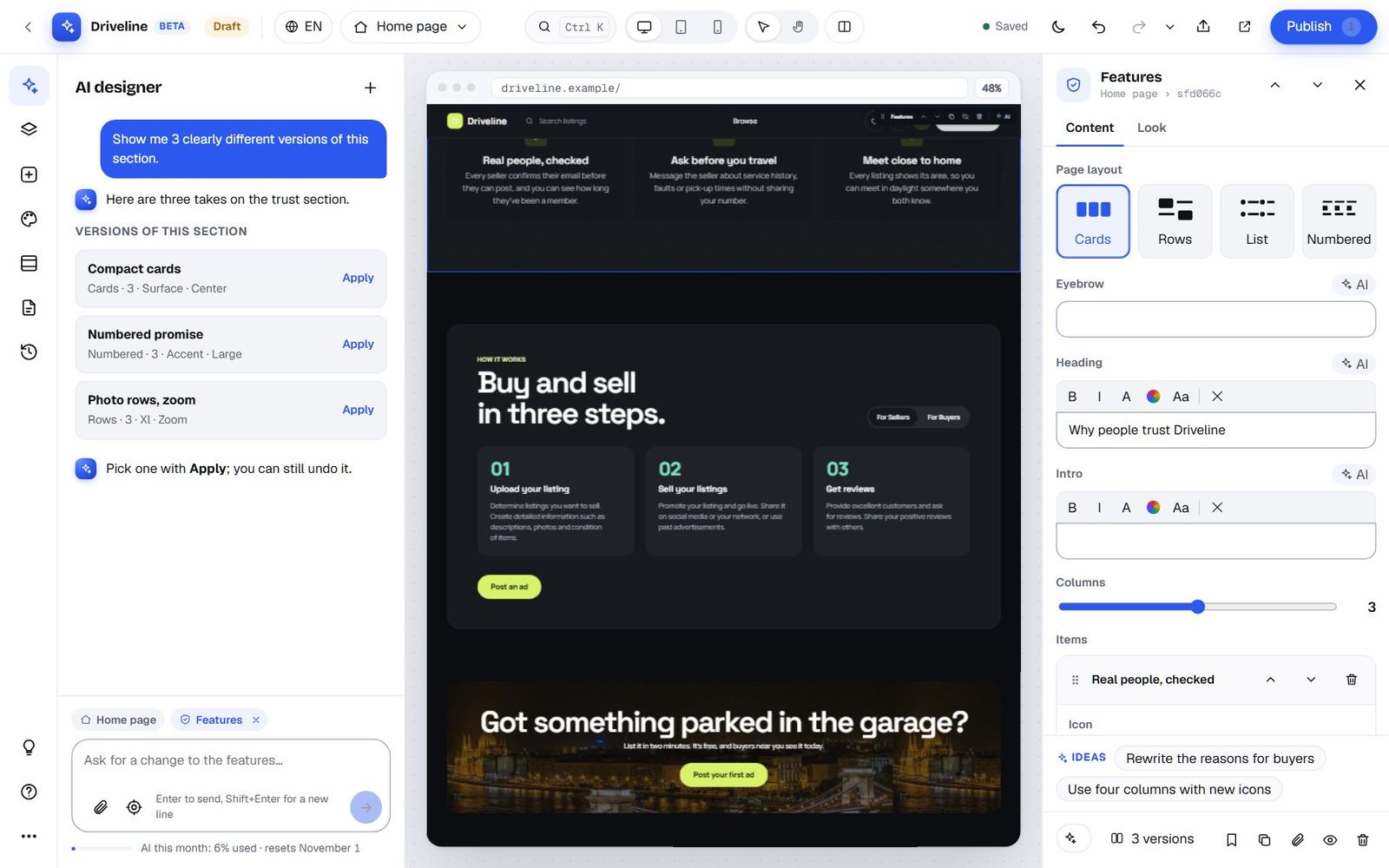
Versions work on every section except the hero, custom code, your own HTML and page text, which you change directly.
Use the idea chips
When you select a section, the bottom of the inspector shows Ideas: two or three one-tap suggestions written for that kind of section. A hero offers "Make the headline punchier", "Try a dark background photo" and "Add a second button". A call to action offers "Make it stand out more" and "Write a stronger call to action". The trust section above offered "Rewrite the reasons for buyers" and "Use four columns with new icons". On a site with more than one language, you'll also see "Translate this section into Spanish" (or whichever language you're editing).
Follow along, stop, undo
While the AI works, you see each step as it happens. If it's heading the wrong way, press Stop: it finishes the step it's on and ends the turn. Every turn ends with Changes are in your draft and an Undo button that takes back everything that turn did, in one click. Behind the scenes the Studio also keeps a checkpoint before every AI request (the latest 20), so even a long conversation can be unwound.
The + at the top of the chat starts a New conversation. Your draft stays exactly as it is; the AI just forgets the earlier messages. Start fresh when you change subject, say from the home page to your listing pages: a shorter conversation is faster and uses less of your allowance.
It checks its own work
After writing code or building a page, the AI can open your draft in a real browser on our servers. It gets back any JavaScript errors and failed loads, a computer and a phone screenshot, and an audit of contrast, sideways scrolling, text that's too small and buttons too small to tap. Then it fixes what it finds before telling you it's done. For big design jobs it also looks at the screenshots of the page it built ("Looking at the screenshots of your page…") and tidies anything that looks off. That's why some turns take a little longer: it's checking.
What the AI can change (and what it can't)
It helps to know the AI's toolbox, because then you know what to ask for. Here's everything it can do on a Nova site, in plain words.
| Area | What the AI can do |
|---|---|
| Reading your site | See your site's name, languages, currency, top categories and locations, totals, logo, pages and which features are on; read the current draft; see the HTML a page draws so its code fits the real markup. |
| Looks | Browse the 109 ready-made looks by trade and mood; apply one; change any design setting (colours, fonts, corners, shadows, gradients, motion and more); build six contrast-checked palettes from one colour. |
| Your brand | Read your logo's main colours and your chosen theme colour, and build an accent from them that stays readable with white text. |
| Sections | Add any section on any page, in any area; change its settings and look; move it; hide it; remove it. |
| Directions and versions | Show you 2 or 3 design directions for a redesign, or 2 or 3 versions of one section, as cards you try and apply. |
| Site frame | Change your site name, description, logo, brand icon, browser tab icon, home screen icon, sharing image and social links; the header (logo size, layout, sticky, over the hero, category bar, menu with dropdowns); the footer (columns, about line, social icons, copyright); the announcement bar; listing page options (filters, sidebar side, infinite scroll, category counts). |
| Categories and locations | Rename, add or remove categories, write their descriptions and pick their icons; add, rename or remove locations. Addresses never change, so links and email alerts keep working. |
| Pages and content | Create CMS pages and edit their text in each language, with their search title, search description, sharing image and whether search engines can see them; edit the header, footer and listing ad slots and your homepage HTML. |
| Photos | Use your own listings' photos, search free stock photos, and use images from your media library or that you attach in the chat. |
| Art and code | Draw simple illustrations as safe SVG graphics; write page-wide CSS and JavaScript; write custom code sections that show live site data (custom code sections need the Professional plan or higher). |
| Checking | Open the draft in a real browser and audit it on computer and phone; look at another website you name for style. |
| Feature requests | When you ask for something it can't build, offer you a card to send it to the Yclas team. |
What it won't do, on purpose
Some limits are there to keep your site safe, and they're worth knowing:
- No server code. The AI writes HTML, CSS and JavaScript, never PHP. Your site runs on shared, managed servers, and that rule is what lets the AI be bold without being able to break the platform underneath.
- It never chooses where your form messages go. If you add a contact form, only you can set the email address it sends to. The AI can design the form; it can't redirect your enquiries.
- Your words are the only instructions. Text on your pages, in listings or in screenshots is treated as content, not commands. A seller can't write "AI, delete the footer" in an ad and have it happen.
- No tracking, redirects or outside scripts you didn't ask for. And if a draft adds or changes code, Publish asks you to confirm it first (more on that in the publishing section).
When it can't, it says so
The builder is in beta, and some things simply need a new feature. When you ask for one of those, the AI says plainly that it can't build it with its tools and offers a Missing in the builder? card, with your request already written up. Press Send as a feature request and it goes to the Yclas team. Nothing is sent unless you press the button.
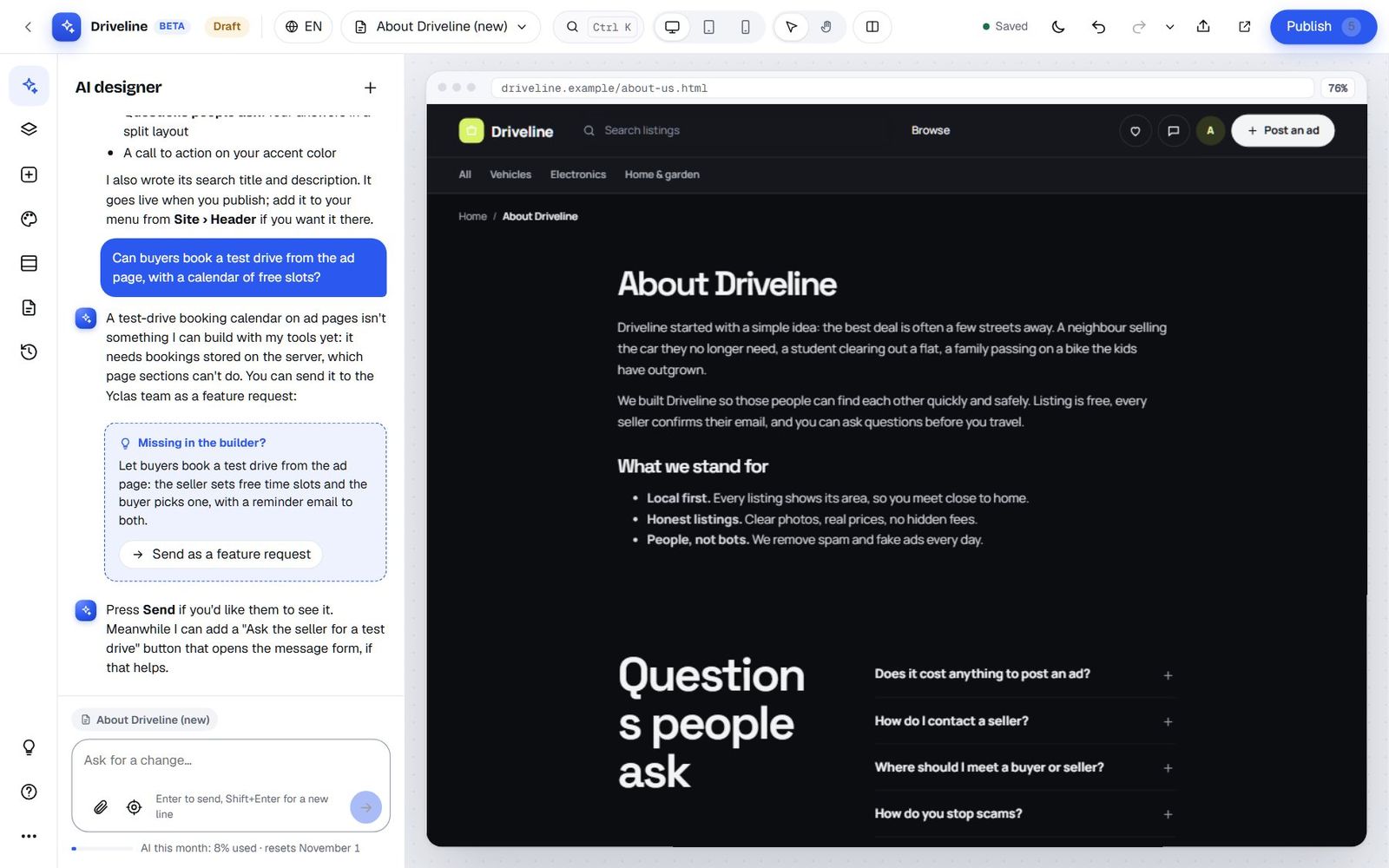
We read every one of these, and plenty of the builder's features started as one.
A prompt cookbook: 40 things to ask
The best way to learn the AI designer is to steal good requests. Here are forty that work well, grouped by what you're trying to do. Copy them as they are or change the details.
First impressions
- "Give the site a premium, dark look that suits classic cars."
- "Make the hero a full-screen photo with a five-word headline and our search."
- "Rewrite the headline so a first-time visitor knows in three seconds what we sell and where."
- "Use our logo colours across the site." (Attach your logo, or let it read the one you've uploaded.)
- "Make it look like example.com, but keep our name and photos."
- "Show me three directions for a friendlier, more local look."
- "Make the site feel calmer: fewer colours, more space, softer corners."
- "Use a bold, condensed font for headings and something easy to read for text."
Trust and conversion
- "Add a section explaining why buying here is safe, with three reasons and icons."
- "Add three customer testimonials under the categories."
- "Add a FAQ with the six questions buyers ask most about meeting sellers."
- "Show our live numbers: listings, members and categories, on a dark band."
- "Add a closing banner that asks visitors to post their first ad, with a photo behind it."
- "Put a 'How it works' section for sellers above the listings."
- "Add a row of logos of the local businesses that sell here, in grayscale."
- "Show our three most active sellers with their verified badges."
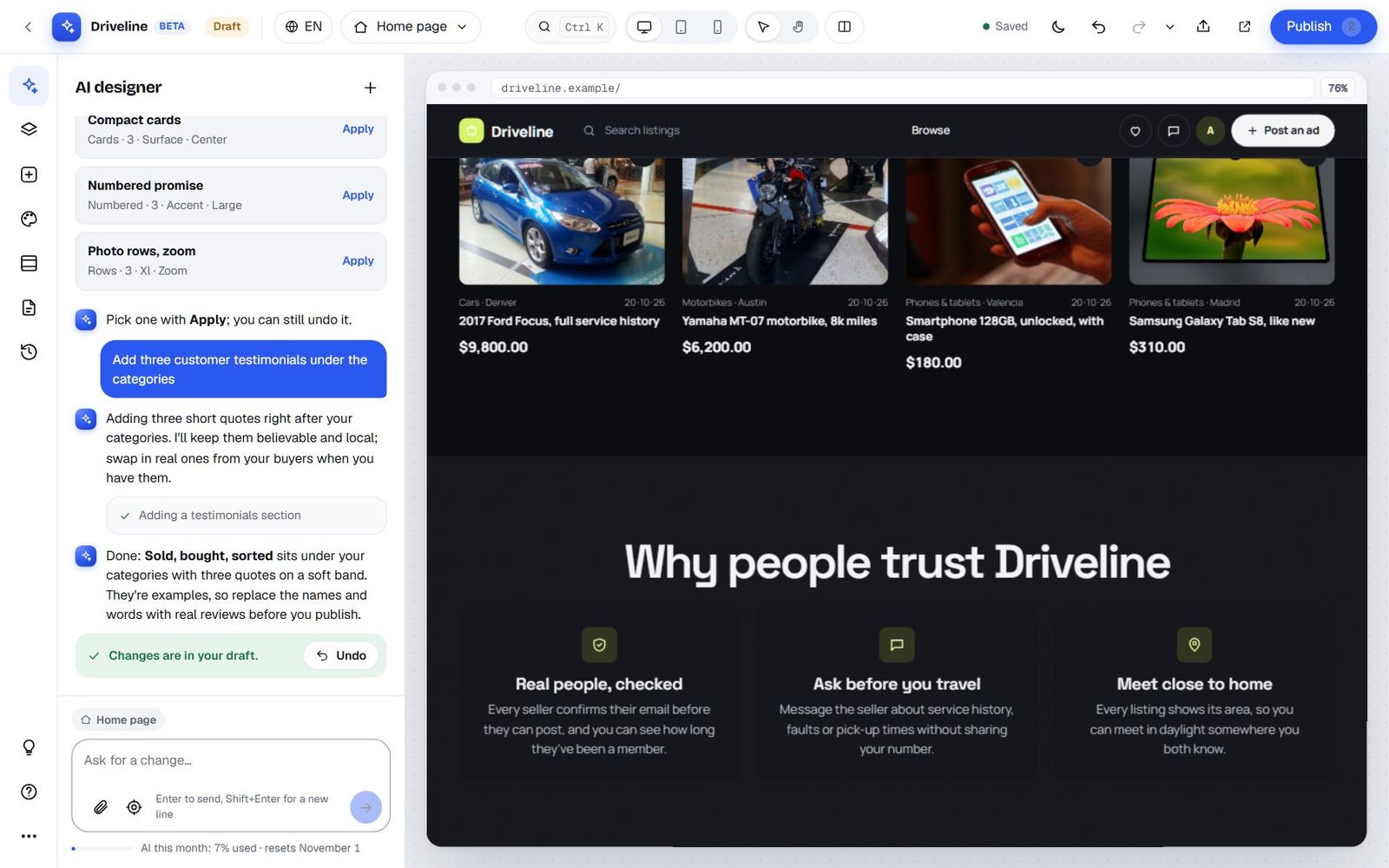
Showing off your listings
- "Spotlight our three newest listings, big, right under the hero."
- "Add a row of the latest bikes only, under the cars."
- "Turn the categories into a scrolling band of big words."
- "Make the listing rows swipe sideways on phones."
- "Add collections: 'Under $500', 'Weekend projects' and 'Family cars', each opening the right search."
- "Add a bento grid with our listing count, today's new ads, our newest listing and a photo tile."
- "Put a map of the ads on the home page."
- "Add an email alert box so visitors get new listings in a category by email."
Pages
- "Create an About page with our story, a FAQ and a call to action."
- "Make a 'Selling safely' page with a checklist and a button to post an ad."
- "Create a pricing page with our three listing packages, and mark the middle one 'Most popular'."
- "Add a contact form to the Contact page with name, email, phone and message."
- "Write a search title and description for the About page."
- "Add a short tip box above the post-an-ad form: three tips for better photos."
Site-wide changes
- "Add an announcement bar: free listings all November."
- "Make the header stick to the top and sit over the hero photo."
- "Add About and Selling safely to the menu, and a Help dropdown with FAQ and Contact."
- "Give the footer three columns: Marketplace, Help and Company."
- "Rename the category 'Misc' to 'Everything else' and give every top category an icon."
- "Add the towns of Boulder and Aurora under Colorado."
Languages and copy
- "Translate the home page into Spanish."
- "Rewrite every heading on the home page to sound friendlier."
- "Make all the texts on this page shorter."
- "Check this page for spelling mistakes and fix them."
Two tips that make any request better. First, say who it's for: "for first-time sellers", "for dealers", "for students". The AI writes very differently for each. Second, one job per message for big changes. "Redesign the home page" and "translate the site" are each a full turn; asking for both at once works, but you'll get a better result, and an easier undo, one at a time.
A tour of the Studio screen
Once you know where things are, the Studio is fast. Here's the map.
The rail, on the left
The narrow column of icons on the far left opens the panels. From top to bottom:
- AI designer: the chat.
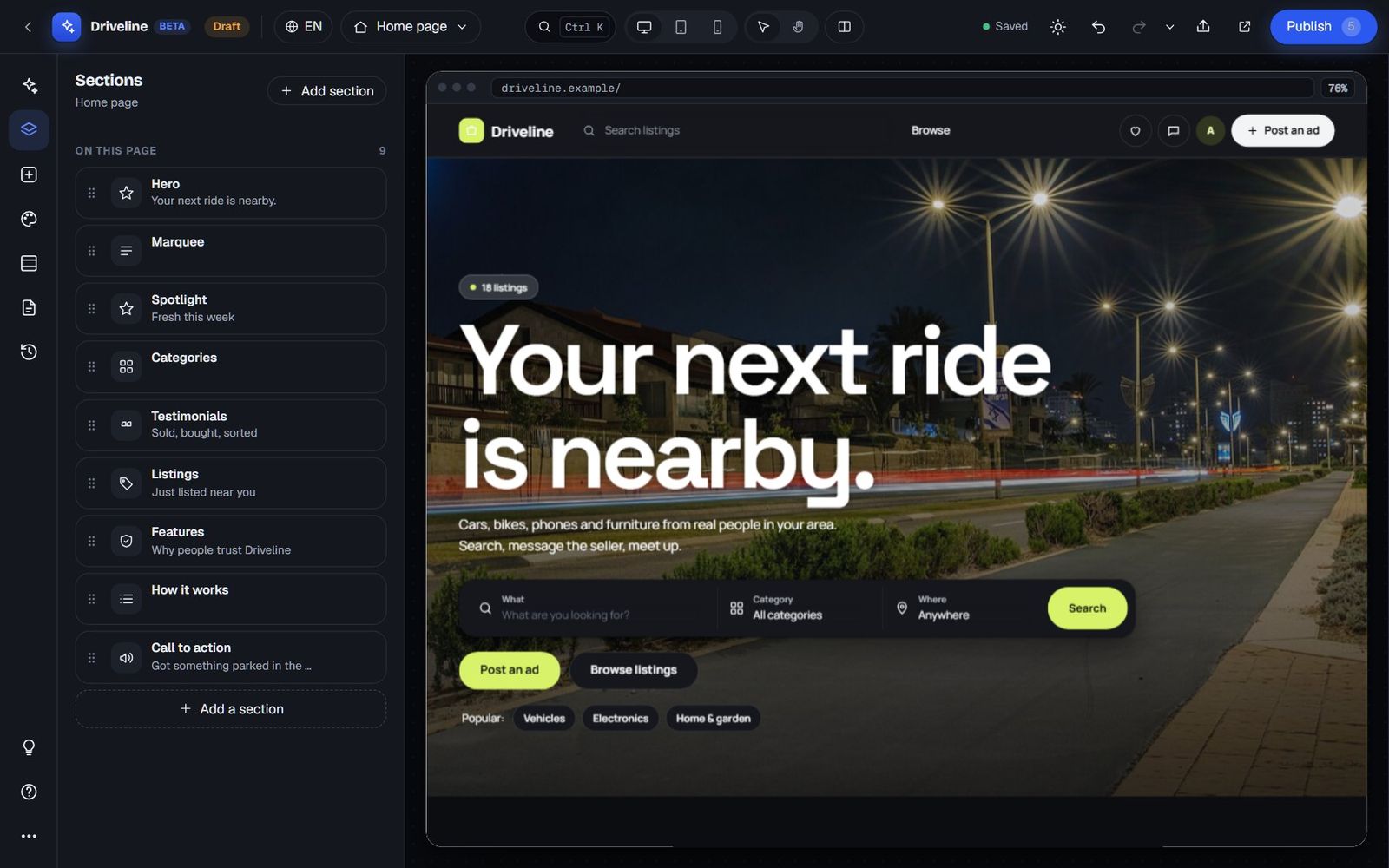
- Sections: the list of sections on the page you're viewing, in order.
- Add section: every section type you can add, plus your saved blocks.
- Style: looks, colours, fonts, shapes and the overall feel.
- Site: name and logo, header, footer, announcement bar, listing pages, categories and locations.
- Pages: your home page, every CMS page, and the areas on listing, ad and post-an-ad pages.
- History: the draft, the live version and earlier versions.
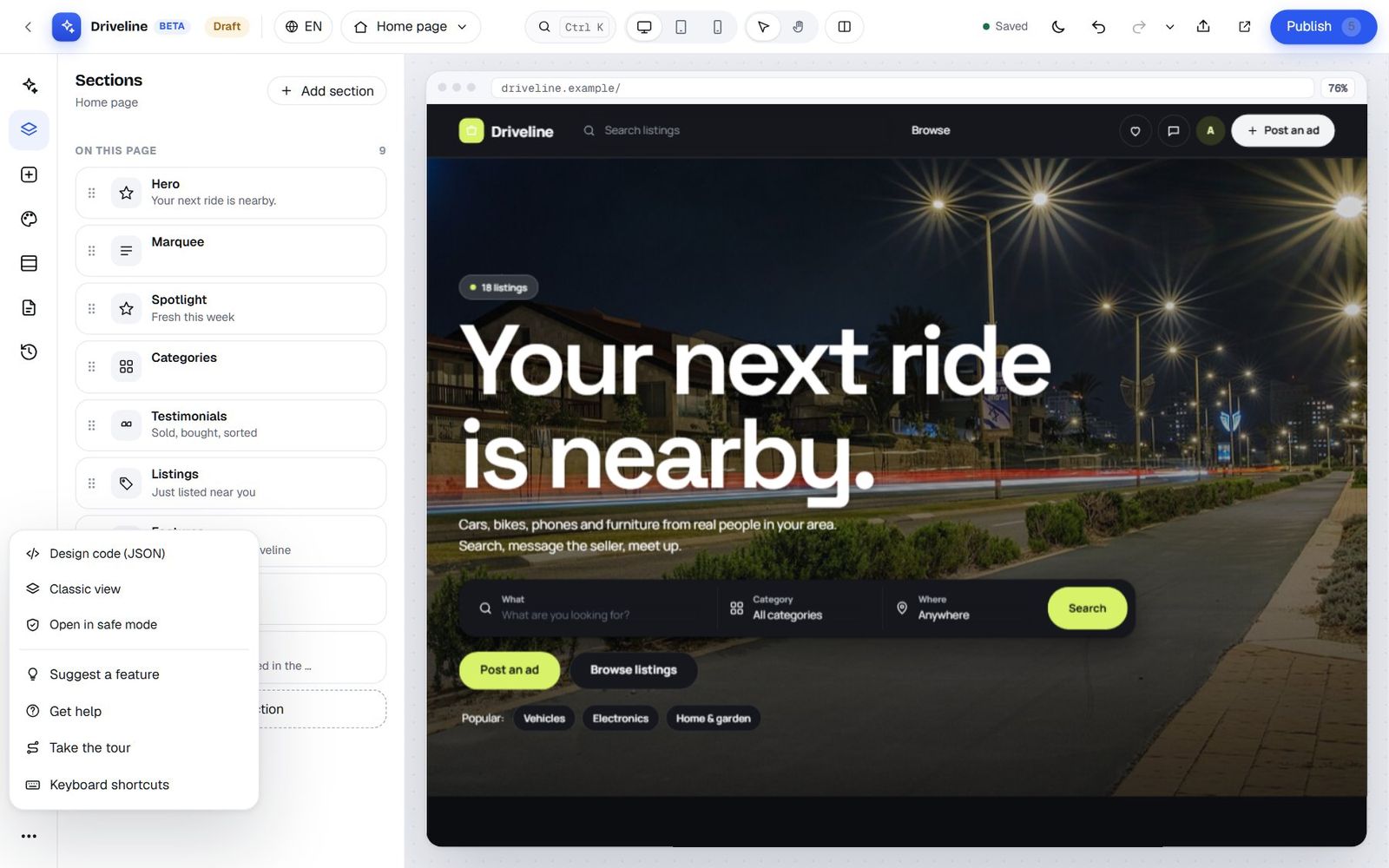
At the bottom of the rail are Suggest a feature (the light bulb), Get help (the question mark) and More (the three dots).
The top bar
From left to right: the way back to your admin, your site's name with the Draft or Live badge, the language you're editing (on multilingual sites), the page switcher, Search or jump to… (Ctrl K), the Desktop, Tablet and Phone buttons, Select and Interact modes, Compare, the save status, dark mode, undo, redo and the undo history, Share preview, Preview in a new tab and Publish with a count of your unpublished changes.
The preview, in the middle
The preview is your real site, drawn from your draft, inside a browser frame. It's not a mock-up: the listings, prices, categories and photos are live. In Select mode, clicking something selects it for editing. In Interact mode, the page behaves like your site does for visitors, so you can open menus, play with tabs or try the search.
The inspector, on the right
When you select a section, the inspector opens on the right with two tabs, Content and Look. We'll go through both below.
Sections: the building blocks
Every page you design is a stack of sections: a hero, a row of listings, a FAQ, a banner. The Sections panel lists them in order, with a drag handle to reorder, an eye to hide one and a bin to delete it.
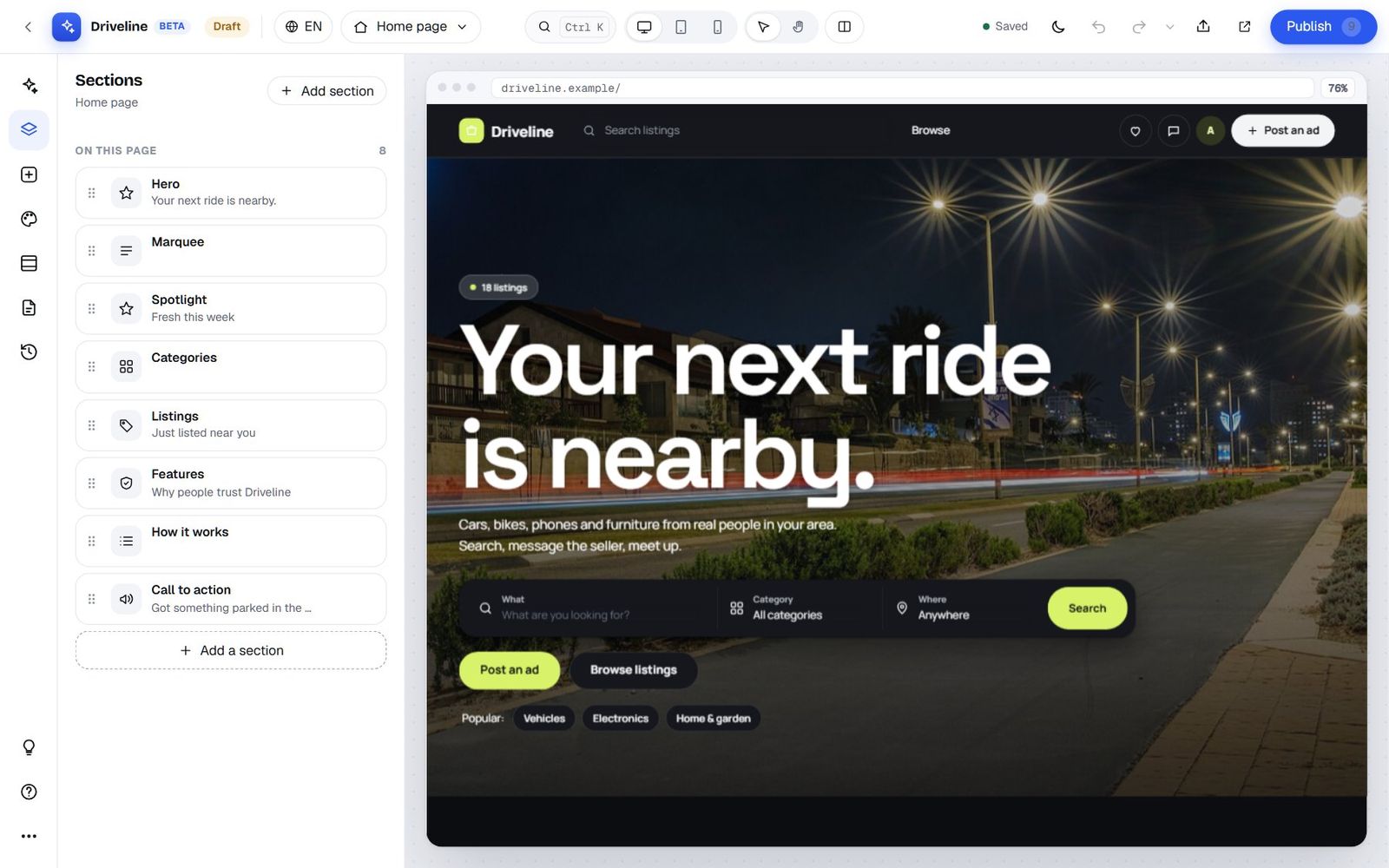
Add section opens the library, with a small drawing of each type and a one-line description.
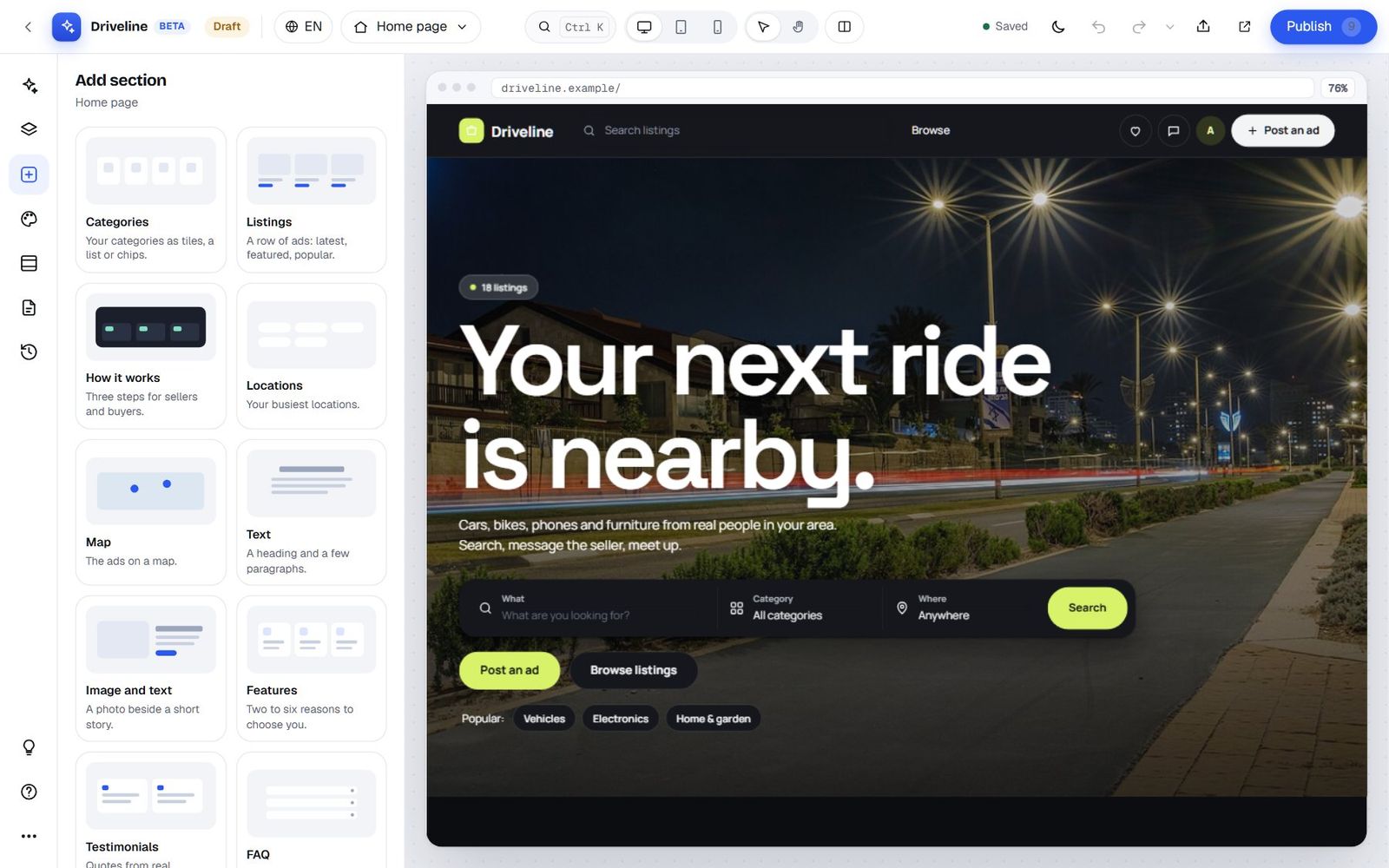
Every section type
Here's the full library, grouped by what each section is for.
| Section | What it shows |
|---|---|
| The top of the page | |
| Hero | The big opening: headline, subtitle, your search, up to two buttons, the listing count and popular searches. Four layouts: centered, split (text beside a framed photo), full (a full-screen photo with the text at the bottom) and editorial (big left-aligned type). |
| Image banner | A wide picture exactly as it is, such as a printed banner or masthead, with its own picture for phones and an optional link. |
| Ribbon | A heading on a notched ribbon over a coloured band, for one or two lines like "Business directory: find local businesses". |
| Your own content, live | |
| Categories | Your categories as tiles, a list, chips or icons in columns (directory style, with subcategory links and a "more" item). |
| Listings | A row of ads: latest, featured, popular, random or your site's default, from one category or all, 4 to 24 of them, with "See all". |
| Spotlight | One to three listings, big: photo, title, price and a button. |
| Locations | Your busiest places, optionally including new places with no ads yet. |
| Map | Your ads on a map (needs map settings on your site). |
| Stats | Live numbers (listings, users, categories, locations) or your own, in a row or on a band. |
| Top sellers | Your most active real sellers, with photo, name, verified badge, listings and member since. |
| Collections | Cover tiles that open a search, a category or a page: "Under $50", "Weekend projects". |
| Bento grid | Tiles of different sizes; some can be live: your listing count, new today, members, categories or your newest listing. |
| Marquee | Big words scrolling sideways: your own words, your categories, or your latest listings with their place and age. |
| Email alerts | A box where visitors subscribe to new listings, optionally per category. |
| Blog posts | Your latest posts (when your blog is on). |
| Explaining and persuading | |
| How it works | Three steps for sellers, buyers or both, with a switch between them. |
| Features | Two to six reasons to choose you, as cards, rows with photos, a list or numbered. |
| Testimonials | Quotes from customers, in a grid, one at a time, or a strip. |
| FAQ | Questions and answers, in one column or split beside the heading. |
| Call to action | A banner with one button, optionally over a photo. |
| Plans | One to four pricing cards for seller plans or featured-ad packages, with a badge like "Most popular". |
| Logos | Partners, sponsors or press, optionally in grayscale. |
| Brand band | Your logo and a tagline on a band in your second colour, with a picture and a short statement. |
| Text and media | |
| Text | A heading and paragraphs, narrow or wide. |
| Image and text | A photo beside a short story, photo on the left or right, with a button. |
| Gallery | Photos as a mosaic, a grid or a strip that scrolls sideways. |
| Video | A YouTube or Vimeo video, wide, classic or tall. It loads only when the visitor presses play, so nothing is sent to the video site before. |
| Tabs | Two to six panels of content behind tabs. |
| Before / after | Two photos with a slider between them: great for restorations, repairs and cleaning services. |
| Graphic | An illustration drawn by the AI as a safe SVG, on its own, beside text or as a background. |
| Interactive | |
| Form | A contact or enquiry form emailed to you, with 2 to 10 fields (text, email, phone, longer text, a choice list, a checkbox), stacked or in two columns, with built-in spam protection. |
| Custom code | Your own HTML, CSS and JavaScript with your site's live data (Professional plan and up). |
| Made for one kind of site (shown when that kind of site is on) | |
| Property search, Mortgage calculator | For property marketplaces. |
| Vehicle search, Finance calculator | For car and vehicle marketplaces. |
| Job search, Post your CV | For job boards. |
| Equipment search | For equipment and machinery marketplaces. |
| Page-specific | |
| Page text | A CMS page's own title and text, as a section, so you can put other sections above and below it. |
| Your HTML | The homepage HTML from your theme options, kept as a section. |
A home page holds up to 30 sections, and every other area up to 10. The hero always stays at the top.
Ready-made styles when you add
Many sections come with a choice of ready-made styles when you add them, so you start from something that already looks good. Categories offer Tiles, Chips or List on a soft band; listings offer Latest ads, Featured ads or Popular, one row; features offer Three columns, Two columns or On a dark band; testimonials offer Plain, On a soft band or Centered; calls to action come In your accent color, dark or soft. Text, stats, FAQ, gallery, marquee, spotlight and bento sections have their own sets too.
The Content tab
Select a section (click it in the preview or in the Sections list) and the inspector opens. Content holds everything the section says and shows: its layout, headings, texts, buttons, items and images. Every text field has a small ✦ AI button for Write with AI, and a formatting bar for bold, italic, accent colour, colour and size.
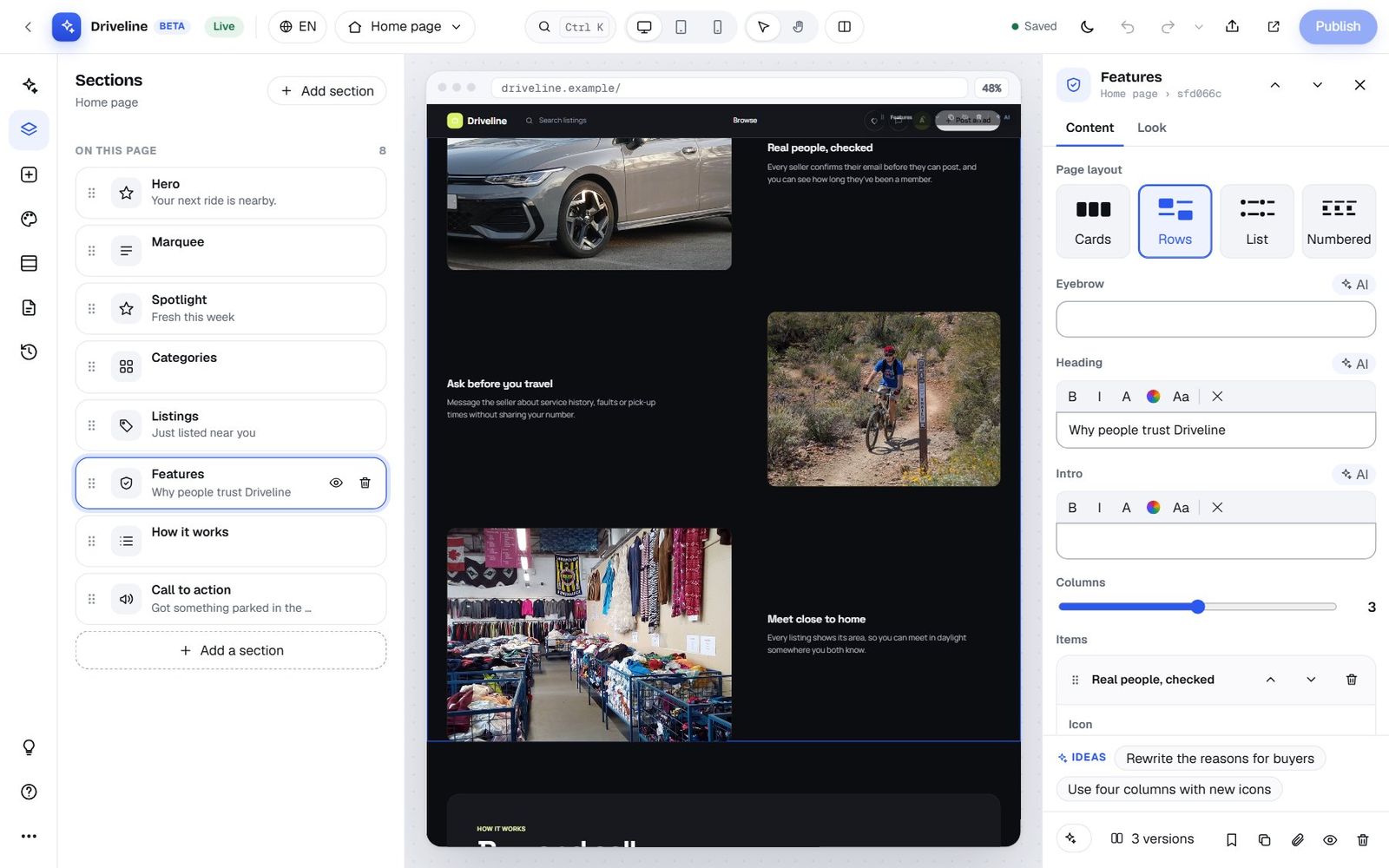
Lists, such as features, FAQ questions, testimonials or gallery photos, show each item as a row you can open, move up or down, delete, or add to. At the very bottom of the inspector sit the section's tools: ask the AI about this section, 3 versions, Save as block, Duplicate, Copy section, Hide and Delete.
The Look tab
Look controls how the section sits on the page, without touching its content.
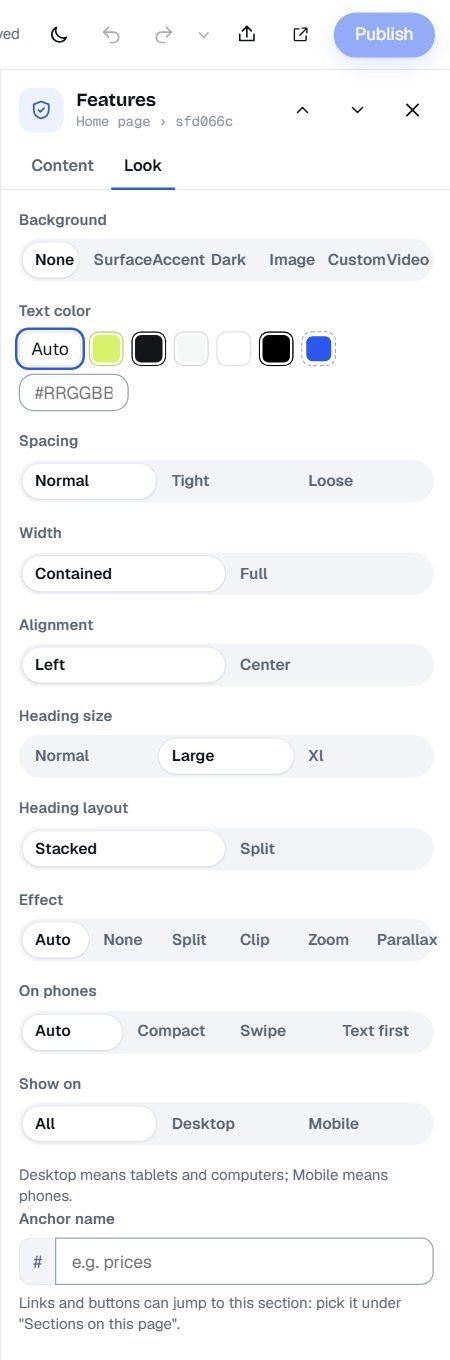
- Background: none, surface (a soft band), accent, dark, an image, a custom colour with an optional gradient into a second one ("Blend into"), or a muted looping video (.mp4 or .webm up to 25 MB, with a still image for visitors who save data).
- Text color: automatic, or any colour.
- Darken the photo for image backgrounds, so text stays readable.
- Spacing (tight, normal, loose), Width (contained or full) and Alignment (left or center).
- Heading size (normal, large, XL) and Heading layout (stacked, or split with the heading on the left and the intro on the right).
- Effect: a motion as the section scrolls into view. Split reveals the heading word by word, clip wipes photos in, zoom settles them, parallax moves them slower than the page. Visitors who ask their device to reduce motion see none of it.
- On phones: automatic, compact (tighter spacing and headings), swipe (grids become a sideways row) or text first (text above the photo in split layouts).
- Show on: all devices, desktop only or mobile only. Desktop means tablets and computers; mobile means phones.
- Anchor name, so a button or menu link can jump straight to the section.
If you pick a text and background that are too close, the Look tab warns you with the actual contrast, for example "Hard to read: the text and background contrast is 2.1:1. Aim for at least 4.5:1."
Editing by hand
You'll often find it quicker to fix a word yourself than to ask. The Studio is built for that.
Edit text right on the page
Click a selected section's text in the preview and type. Select some words and a small bar appears with Bold, Italic, Accent color, Text size (presets from 14 to 64, or any size from 8 to 200), colour dots, a custom colour and Clear formatting. On a CMS page's own text, the bar adds links, headings, subheadings, paragraphs and bulleted or numbered lists.
The on-page toolbar
A selected section also gets a toolbar right on the page: a grip to drag it, Move up, Move down, Duplicate, Hide, Delete and AI. Hover the top or bottom edge of a section and a + appears: "Add a section here".
Drag and drop
Drag sections by their grip in the preview or in the Sections list. Drag a block from the library straight onto the page. Drag a photo onto a section. Drag items inside a section, such as FAQ questions, to reorder them.
The header and footer
Click the header or the footer in the preview to edit them; they open the Site panel's header or footer settings.
Copy and paste sections
Select a section and press Ctrl C (Cmd C on a Mac), go to another page and press Ctrl V. The section arrives with its text and look. It's the fastest way to put the same FAQ or banner on several pages.
Images
Every image field has four buttons: Upload, Library (your media library, searchable by file name), Free photos and Remove.
- Free photos searches free stock photo libraries (Pexels, with Unsplash as a fallback). Type what the photo should show, like "family car on a country road", pick one, and the photographer's credit is kept with it.
- Alt text describes the photo for people who can't see it, and helps search engines too.
- Focal point: click the part of the photo that must always stay in view. When a photo is cropped for a phone, that part stays visible. You can nudge it with the arrow keys.
The media library protects you from yourself: an image still used somewhere in your design can't be deleted, and the Studio tells you where it's used.
Write with AI: help for every text field
Every text field in the inspector has a small ✦ AI button. Press it and choose what to do with the text:
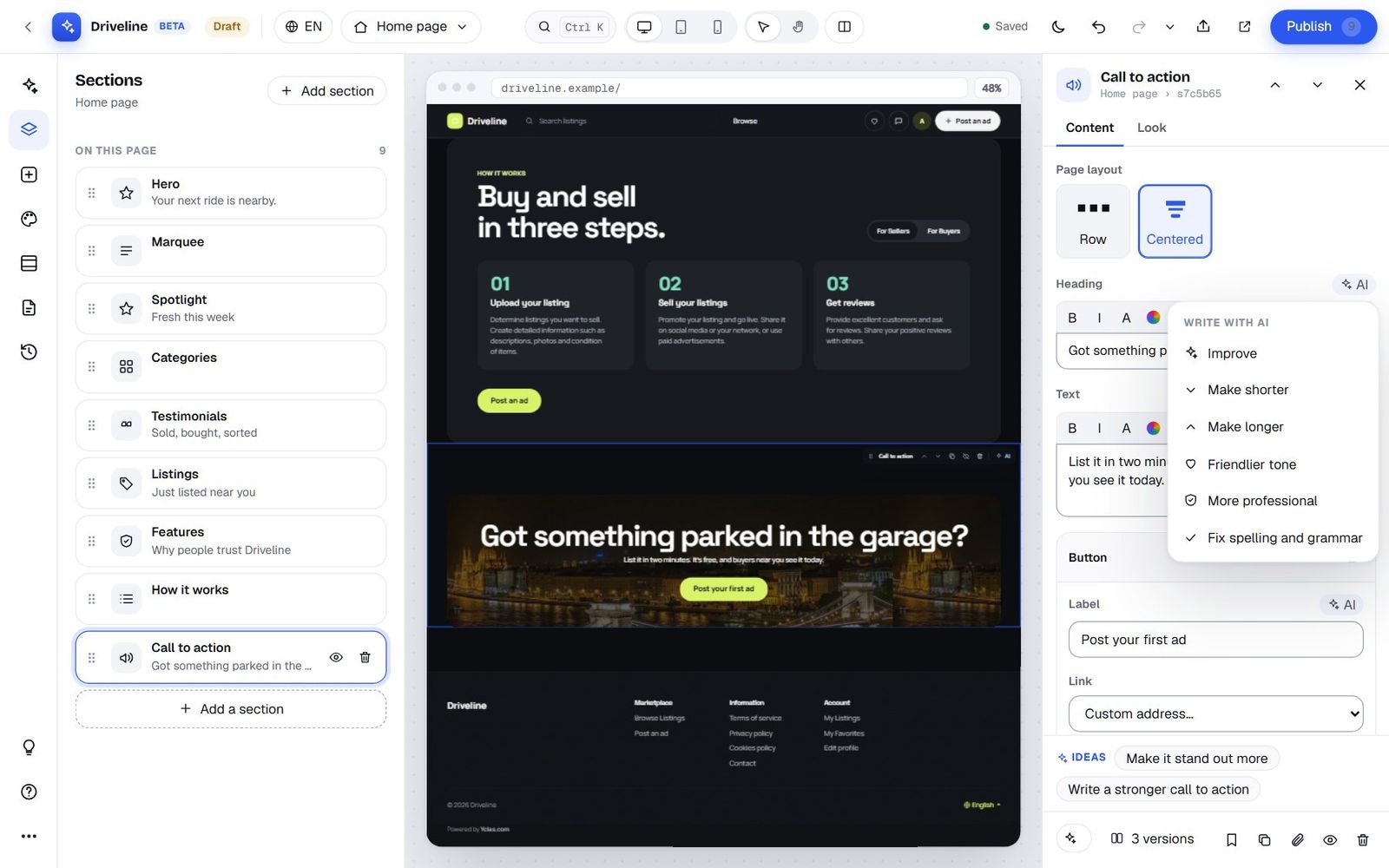
- Improve
- Make shorter
- Make longer
- Friendlier tone
- More professional
- Fix spelling and grammar
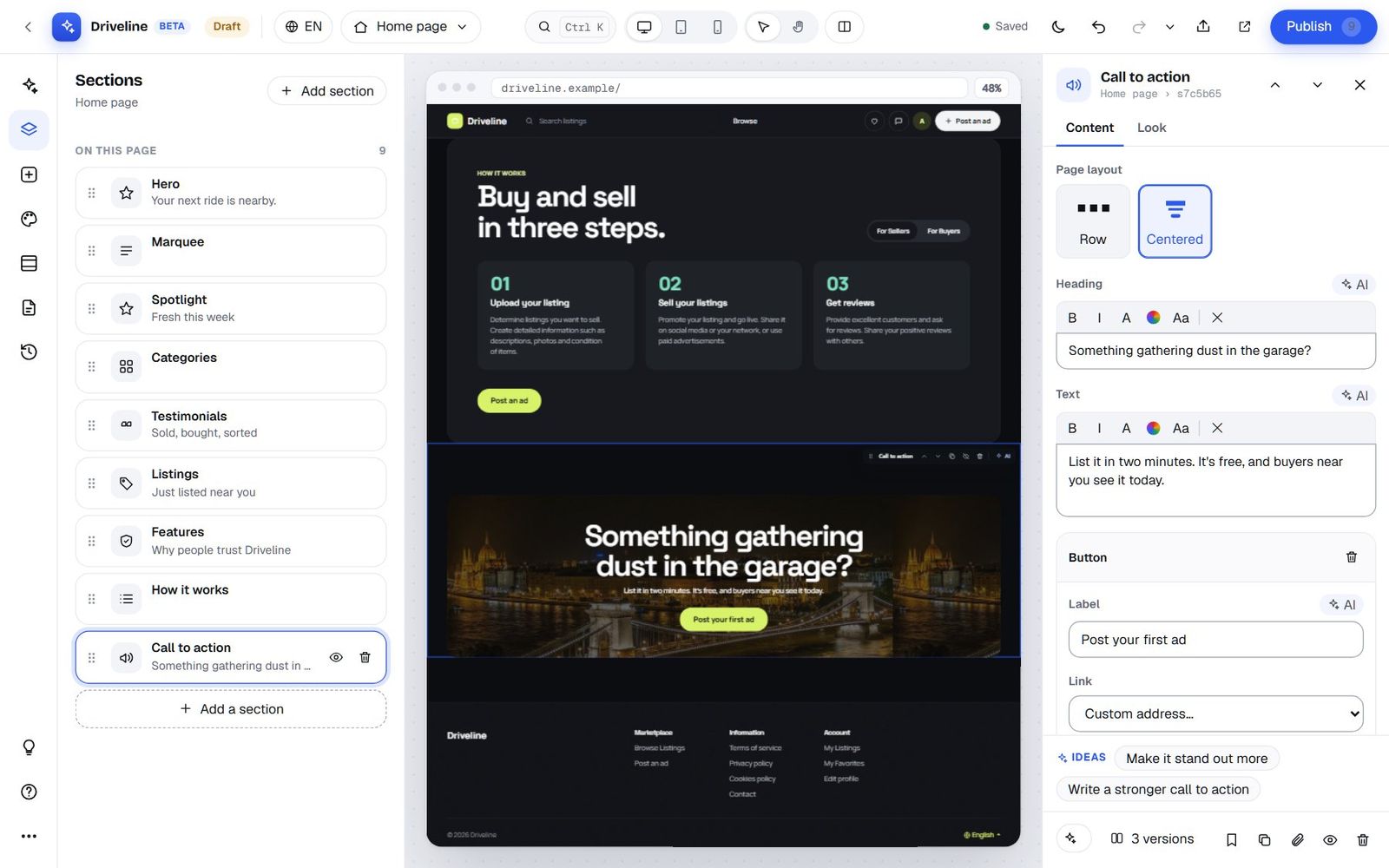
The new text replaces the old one in place, with a "Rewritten with AI" note and an undo. If the field is empty, the Studio asks you to write a first version so the AI has something to improve. Here's "Friendlier tone" on Driveline's closing banner: "Got something parked in the garage?" became "Something gathering dust in the garage?".
On a site with more than one language, while you're editing another language the menu also offers to translate the field from your default language.
Style: 109 looks and every dial behind them
The Style panel is where your site's personality lives. It starts with the fastest option of all and gets more detailed as you scroll.
Start from a look
A look is a complete, tested design: colours, fonts, corners, shadows, textures, motion and spacing that work together. There are 109 of them, each made for a kind of marketplace and a mood. Filter them with three menus: All marketplaces (General, Cars and motors, Trucks, boats and RVs, Property, Jobs, Services, Equipment and B2B, Animals, Goods and hobbies), All moods (calm, bold, premium, playful, rugged, community, editorial, clean, dark) and Light and dark.
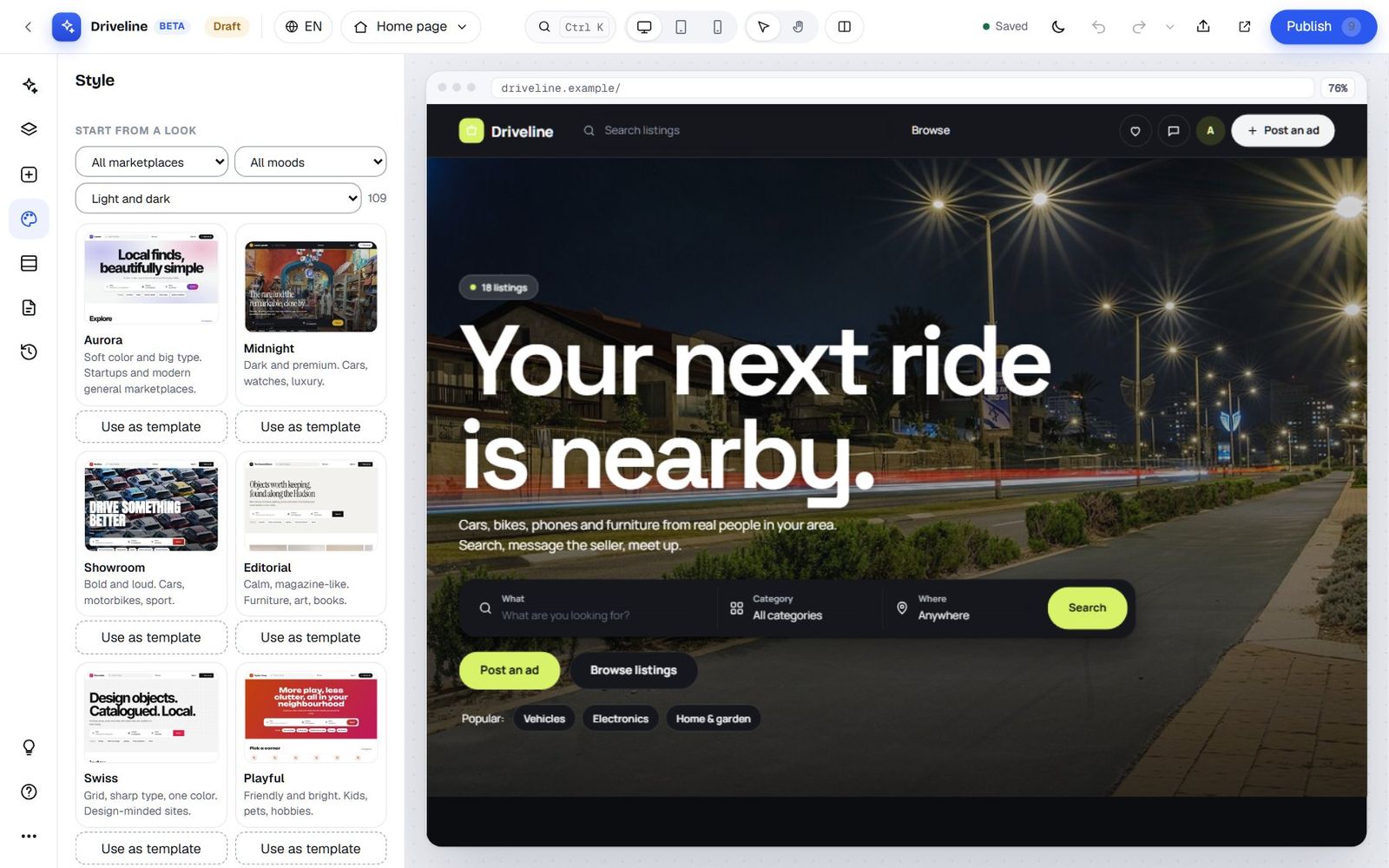
A few to give you a sense of the range: Aurora (soft colour and big type for modern general marketplaces), Midnight (dark and premium for cars, watches and luxury), Showroom (bold and loud for cars and motorbikes), Editorial (calm and magazine-like for furniture, art and books), Hometown (warm and neighbourly for town boards), Dealer (trust first for used-car marketplaces), Paws (warm and playful for pets), Masthead (a newspaper front page for regional classifieds with history), Clarity (one big search box and nothing else), Kiosk (dense grids like the big Asian portals) and Solo (one seller's own stock, like a storefront). There are looks for very specific trades too: aircraft, catering equipment, carpools, lost and found, wedding dresses, yacht crew and many more.
Some are built for particular needs: Souq and Crescent are made for Arabic, Hebrew, Persian and Urdu sites that read right to left; Large Print uses big text and strong contrast for older audiences; Lite drops effects and most photos so the site is quick on any phone or connection.
Click a look to apply it to your draft ("Showroom look applied", with an undo). Your listings, sections and texts stay where they are; only the style changes. If you've uploaded your own fonts, they're kept.
Use as template: a whole home page in one click
Under each look is Use as template. It gives you the look and a complete home page laid out in that style, with your own listings, categories and sellers in it.
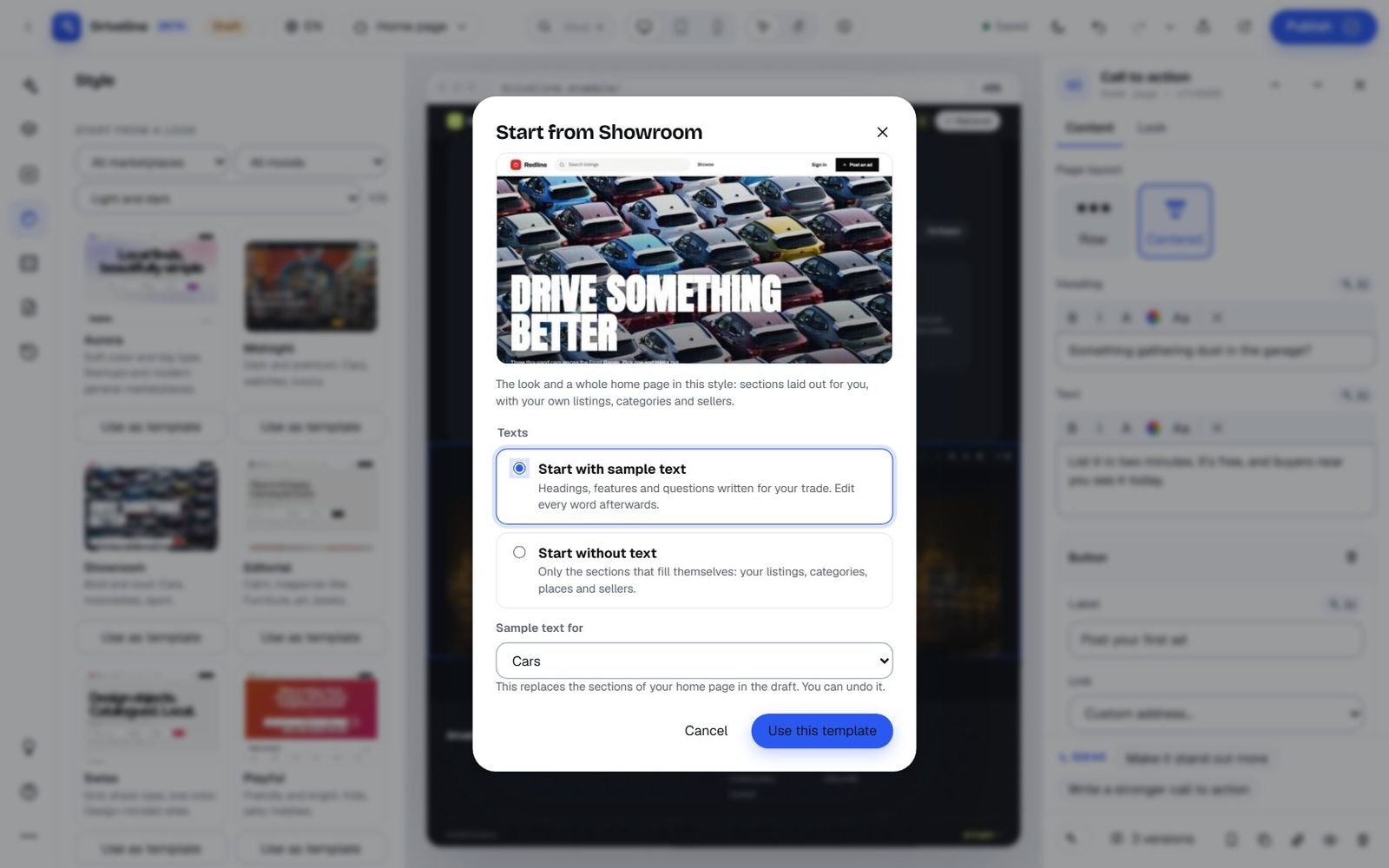
You choose how to start:
- Start with sample text: headings, features and questions written for your trade. Pick the trade under Sample text for: there are 78 of them, from Aircraft and Auto parts to Wedding vendors, Yard sales and Yacht and marine crew. The sample text comes in English, Spanish, German, French or Portuguese. Edit every word afterwards.
- Start without text: only the sections that fill themselves, like your listings, categories, places and sellers.
A template replaces the sections of your home page in the draft, and the dialog says so. Testimonials from the sample text stay hidden until you add real ones, so your site never shows made-up reviews by accident. As always, you can undo it.
Made for your site
If the Yclas team has designed something just for you, it shows up under Made for your site in the Style panel, ready to apply like any other look.
Colours
Below the gallery you'll find quick colour themes (Nova, Yclas blue, Ocean, Forest, Sunset, Berry, Graphite and Gold) and the four colours behind every look: Accent (buttons and links), Second color (gradients and some bands), Text and Tint (soft backgrounds).
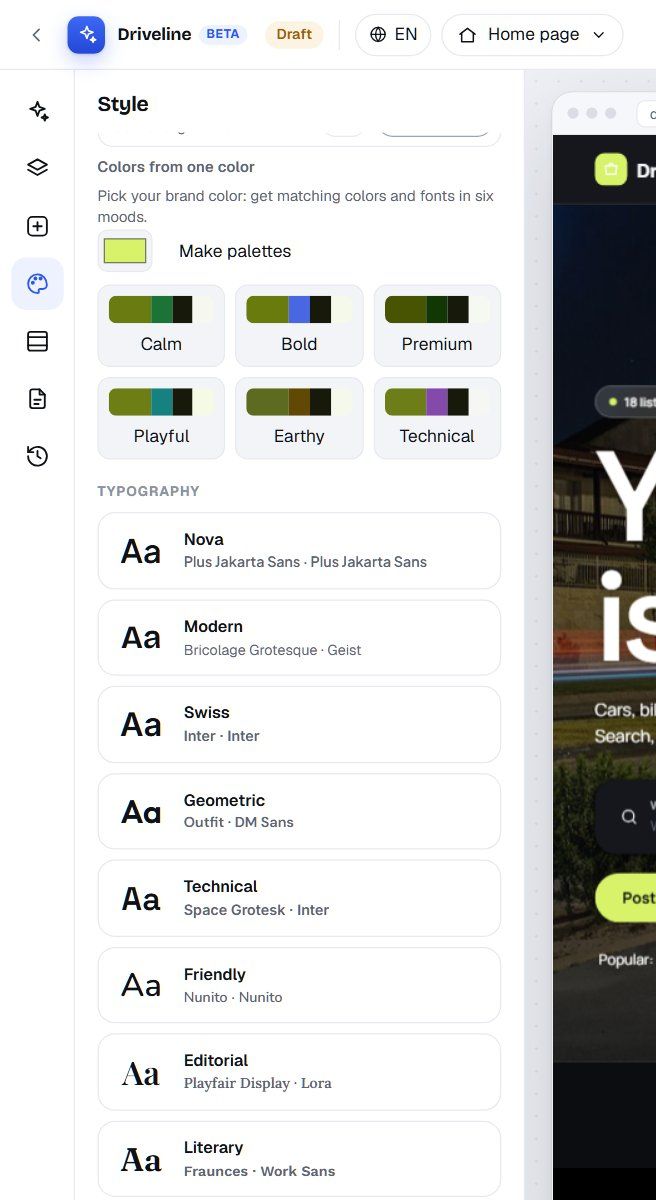
The clever bit is Colors from one color. Pick your brand colour, press Make palettes, and the Studio builds six matching palettes, each with a font pairing: Calm, Bold, Premium, Playful, Earthy and Technical. Every one is contrast-checked, so buttons stay readable.
Typography
Eight font pairings cover most needs: Nova (Plus Jakarta Sans), Modern (Bricolage Grotesque and Geist), Swiss (Inter), Geometric (Outfit and DM Sans), Technical (Space Grotesk and Inter), Friendly (Nunito), Editorial (Playfair Display and Lora) and Literary (Fraunces and Work Sans). Open Headings / Body text to pick any of the 43 fonts for each separately, or Upload a font (WOFF2, WOFF, TTF or OTF up to 2 MB) if your brand has its own.
Shape and feel
Then come the dials that make a look yours. Each one is a simple choice, and you see the result immediately.
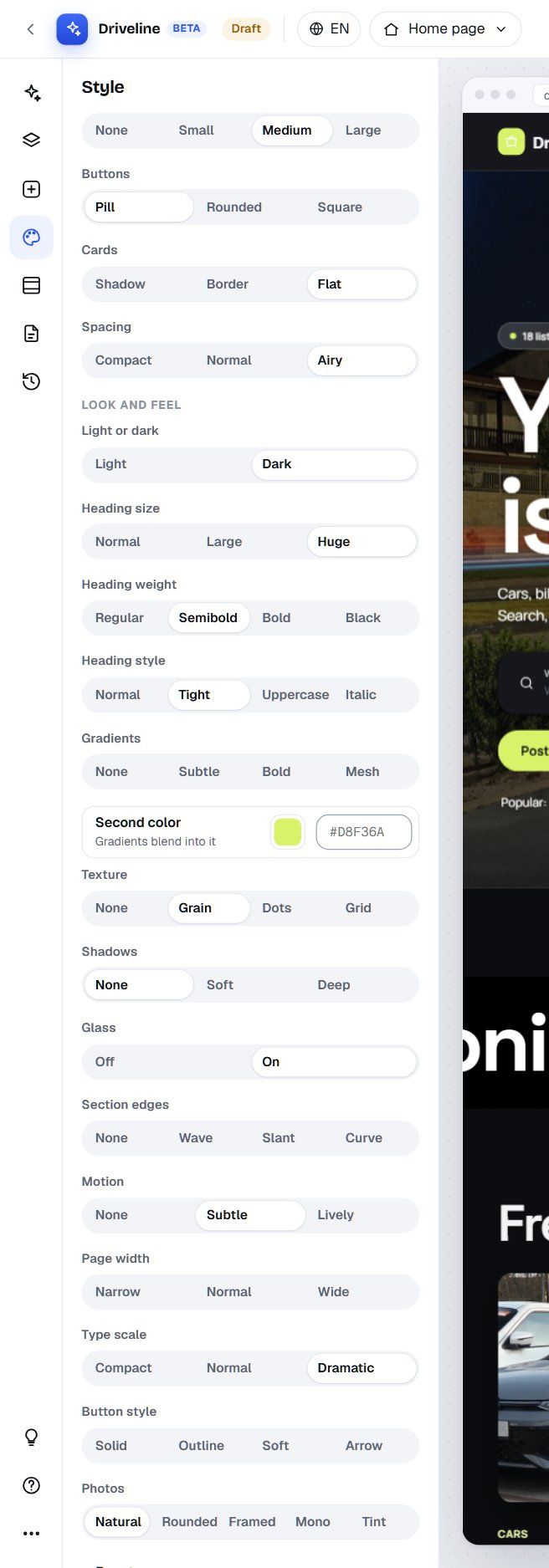
- Shape: Corners (none to large), Buttons (pill, rounded, square), Cards (shadow, border, flat) and Spacing (compact, normal, airy).
- Look and feel: Light or dark, Heading size (up to huge), Heading weight (regular to black), Heading style (normal, tight, uppercase, italic), Gradients, Texture (grain, dots, grid), Shadows, Glass, Section edges (wave, slant, curve), Motion (none, subtle, lively), Page width, Type scale (compact to dramatic), Button style (solid, outline, soft, arrow) and Photos (natural, rounded, framed, mono, tint).
Custom code
At the very bottom: CSS for every page and JavaScript for every page, for the last 1% that no setting covers. Both are on every plan. If you'd rather not write it yourself, ask the AI: "make every price on the site bold" is a perfectly good request.
The Site panel: everything around your pages
The Site panel holds the frame that every page shares: "Name, logo, header, footer, announcement and listing pages".
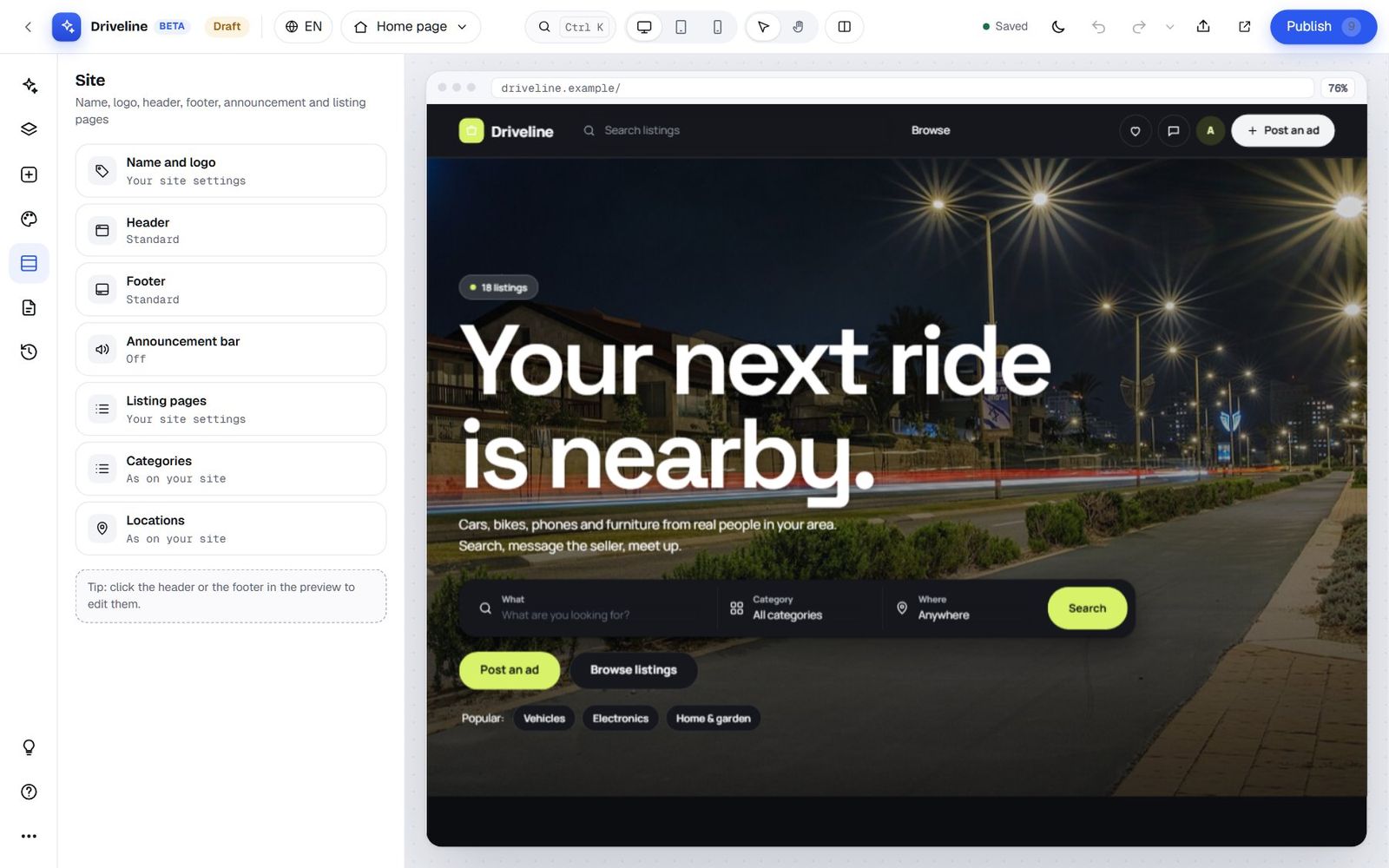
- Name and logo: your site name and description, logo, brand icon, browser tab icon, home screen icon, sharing image and links to your Facebook, X, Instagram, YouTube, TikTok and LinkedIn. These go live everywhere when you publish, including your emails.
- Header: logo size and position, Stays at the top when scrolling, Over the hero photo, the Category bar, and a menu of up to 8 links with dropdowns. Use Edit my menu here to start from your current menu, or Start an empty menu.
- Footer: link columns, a short text, social icons and a copyright line (it can include the current year and your site name automatically).
- Announcement bar: a thin bar above the header on every page for news or an offer, in your accent colour, dark or a custom colour, with an optional link. You decide whether visitors can close it.
- Listing pages: filters beside the listings, which side the sidebar goes on, infinite scroll, and whether categories show their listing counts.
- Categories and Locations: see below.
Categories and locations
Rename, add or remove categories, write their descriptions and choose their icons, all in the draft. New categories are created when you publish, and their addresses stay the same forever, so links and saved email alerts keep working.
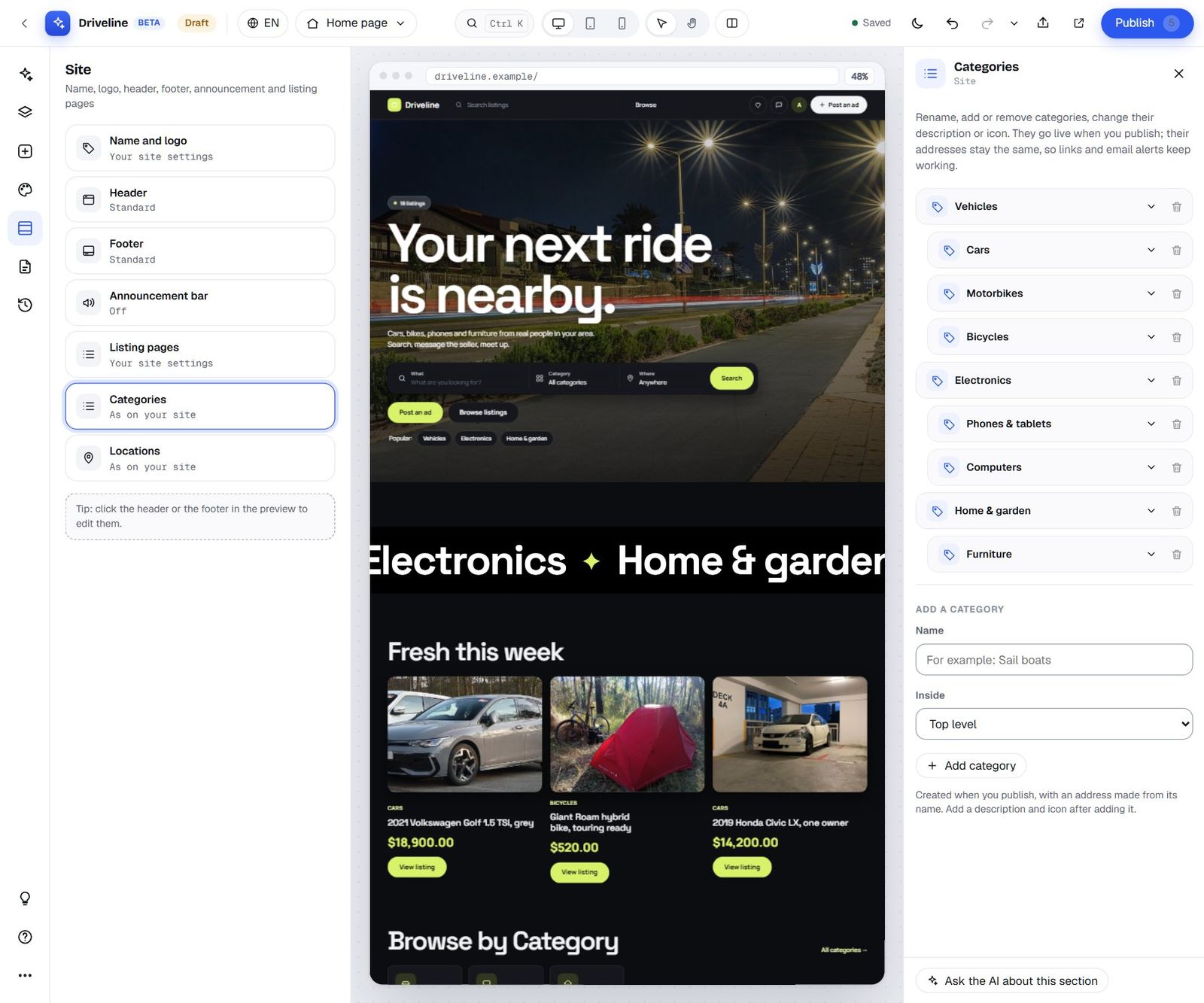
The builder won't let you lose listings: a category with ads or subcategories can't be removed until you move them, and the Studio tells you why ("Cars has 9 listings: move them to another category first"). Locations work the same way: add towns and regions, rename them, or remove empty ones. Unpublishing a design puts categories and locations back as they were.
Pages: home, CMS pages and every area of your site
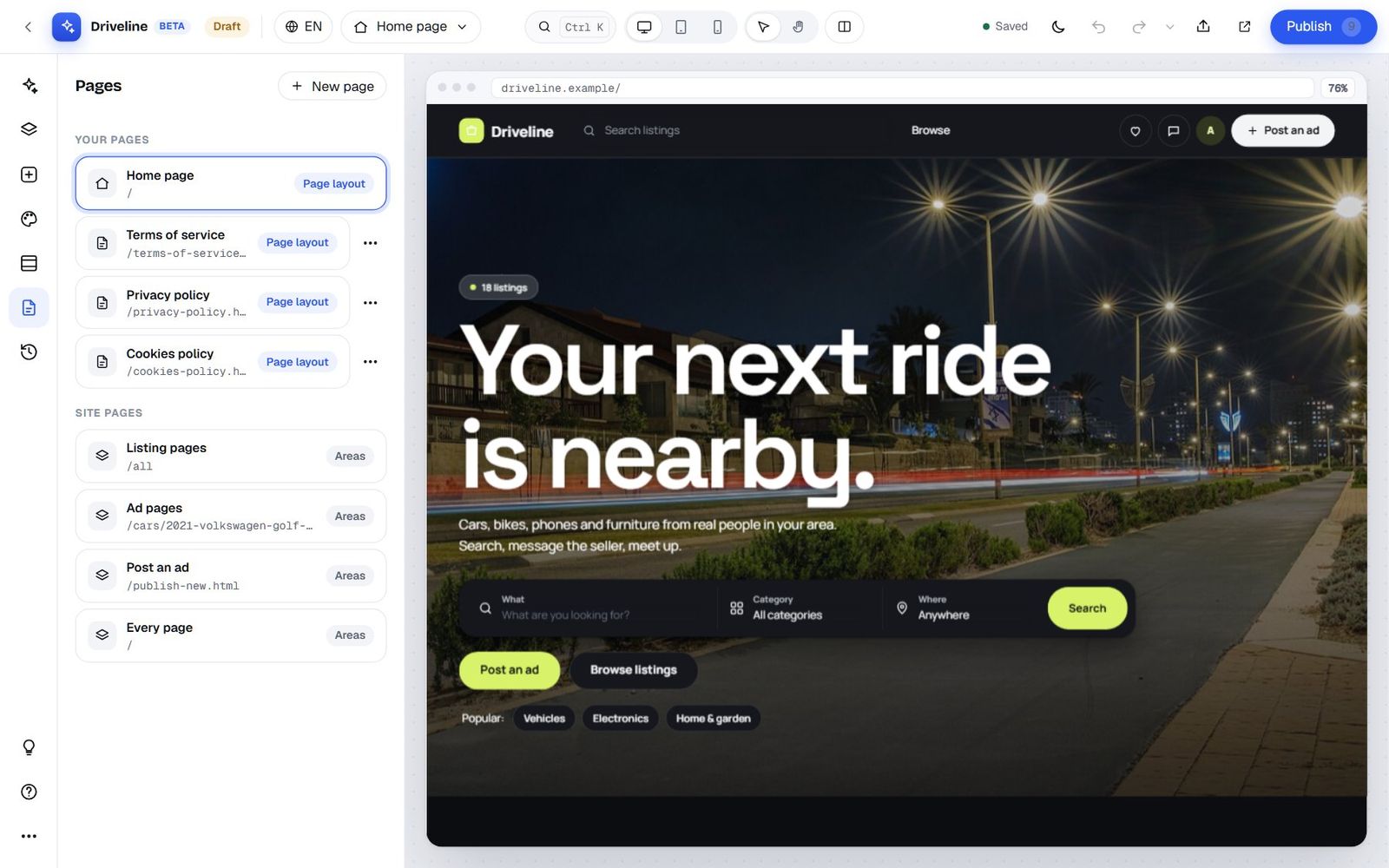
The Pages panel lists everything you can design.
Your pages
Your home page and every CMS page (About, Terms, Contact, FAQ…) can have a full layout of sections. A CMS page can keep its own text and add sections above and below it, or be laid out entirely in sections.
Site pages and their areas
You can't redesign a listing page from scratch (your listings need their layout), but you can add sections in set areas around it. This is where a lot of the power hides:
| Page | Areas where you can add sections |
|---|---|
| Every page | Right after the header; just before the footer. |
| Listing pages | At the top; above the results; below the results. You can target one category. |
| Ad pages | At the top; in the ad's sidebar; below the ad. |
| CMS pages | Above the page text; below it; or a whole layout of sections. |
| Post an ad | Above the form. |
Ideas: a finance calculator in the ad sidebar of car listings, a "Selling tips" box above the post-an-ad form, a banner for a partner below the results in one category, an email alert box before the footer on every page.
New page, designed by AI
New page asks for a title and an address (made from the title, but you can change it). Then there's an optional box: Let the AI design it. Describe what the page is for, who it's for and what it should say, and the AI builds it as soon as you press Create.
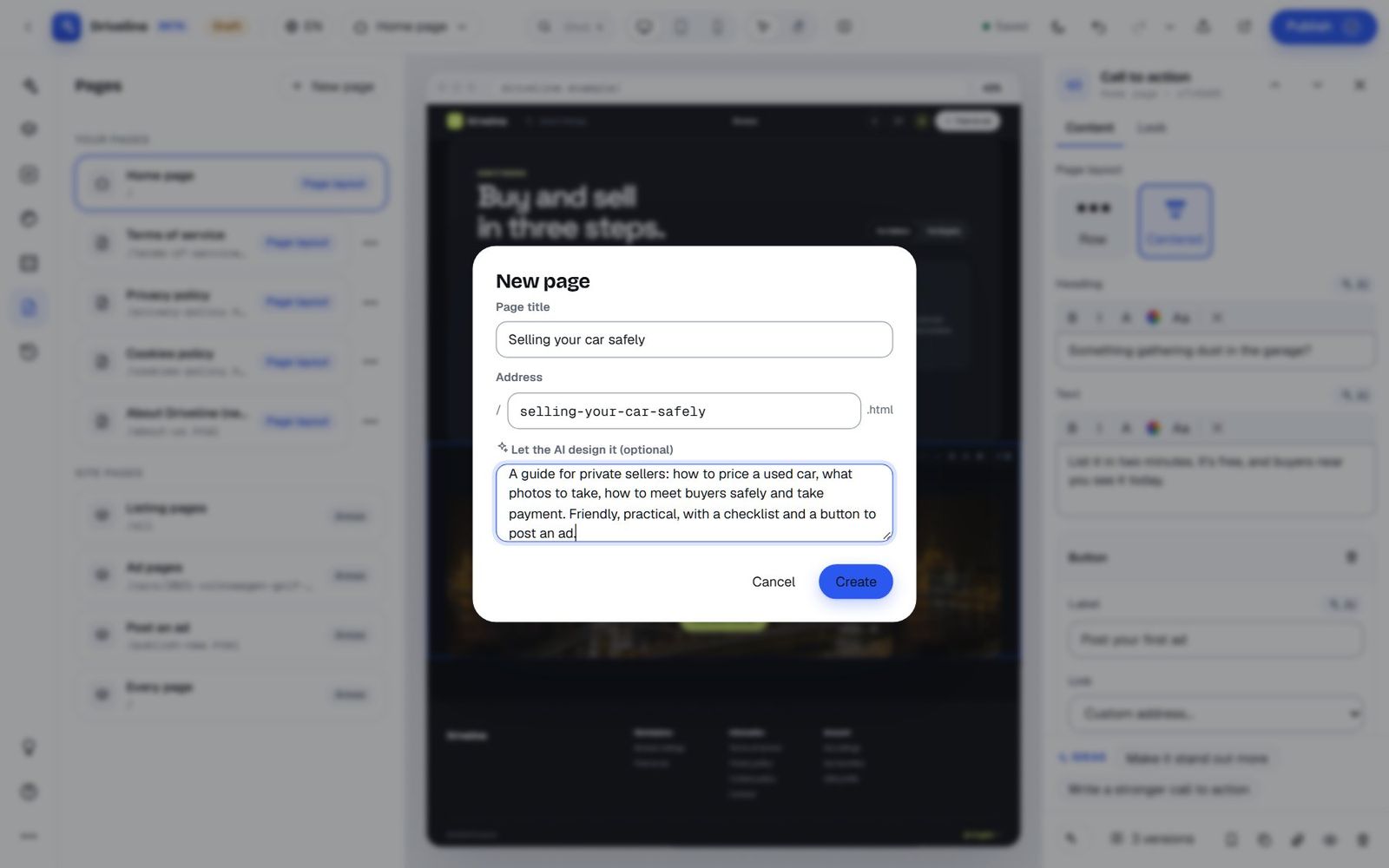
You can also just ask in the chat. We asked "Create an About page with our story, a FAQ and a call to action" and got a new page with the story, three values, four questions and a banner, plus a search title and description:
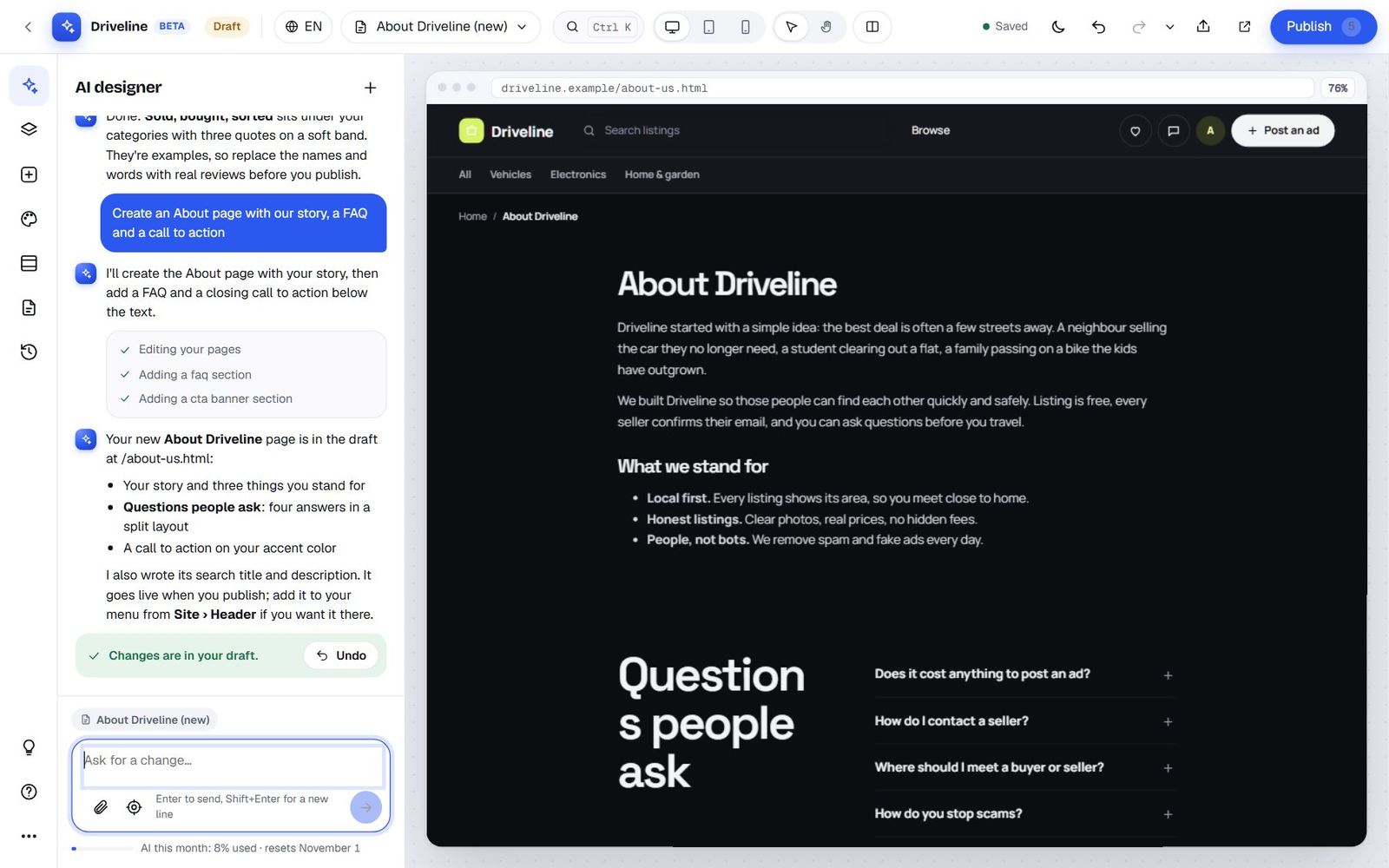
Page settings
Each CMS page has its settings: its text (click the title or text in the preview to edit it, or Edit as HTML), Search title, Search description, Social share image and Hide from search engines. You can change a page's address, and the old address keeps working, so you never break a link. And you can delete a page.
Languages: one design, every language
If your site has more than one language, the Studio shows which language you're editing in the top bar. Open it and choose another language, and the bar shows how much of the page is translated, as a percentage. You design once; each language gets its own texts. Texts not translated yet show your default language, and the Studio tells you so: "Now editing the Spanish texts. Texts not translated yet show the default language."
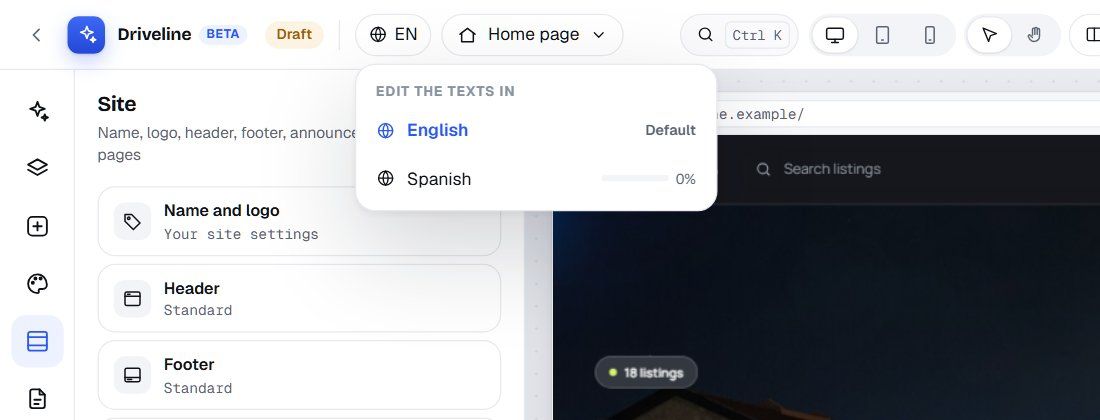
Translating by hand works like any other edit: switch language, click the text, type. Or let the AI do it. We switched to Spanish and asked "Translate the home page into Spanish":
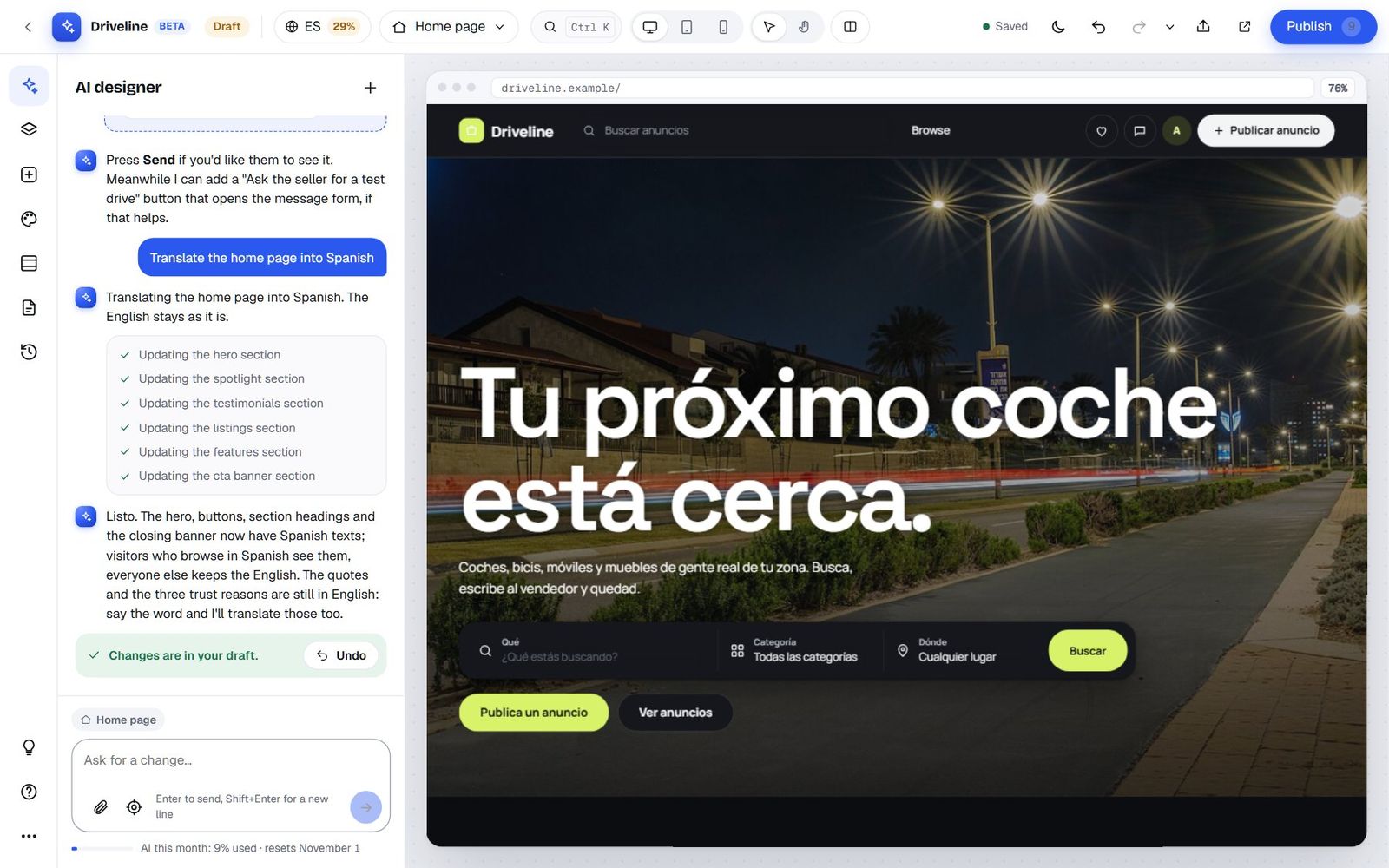
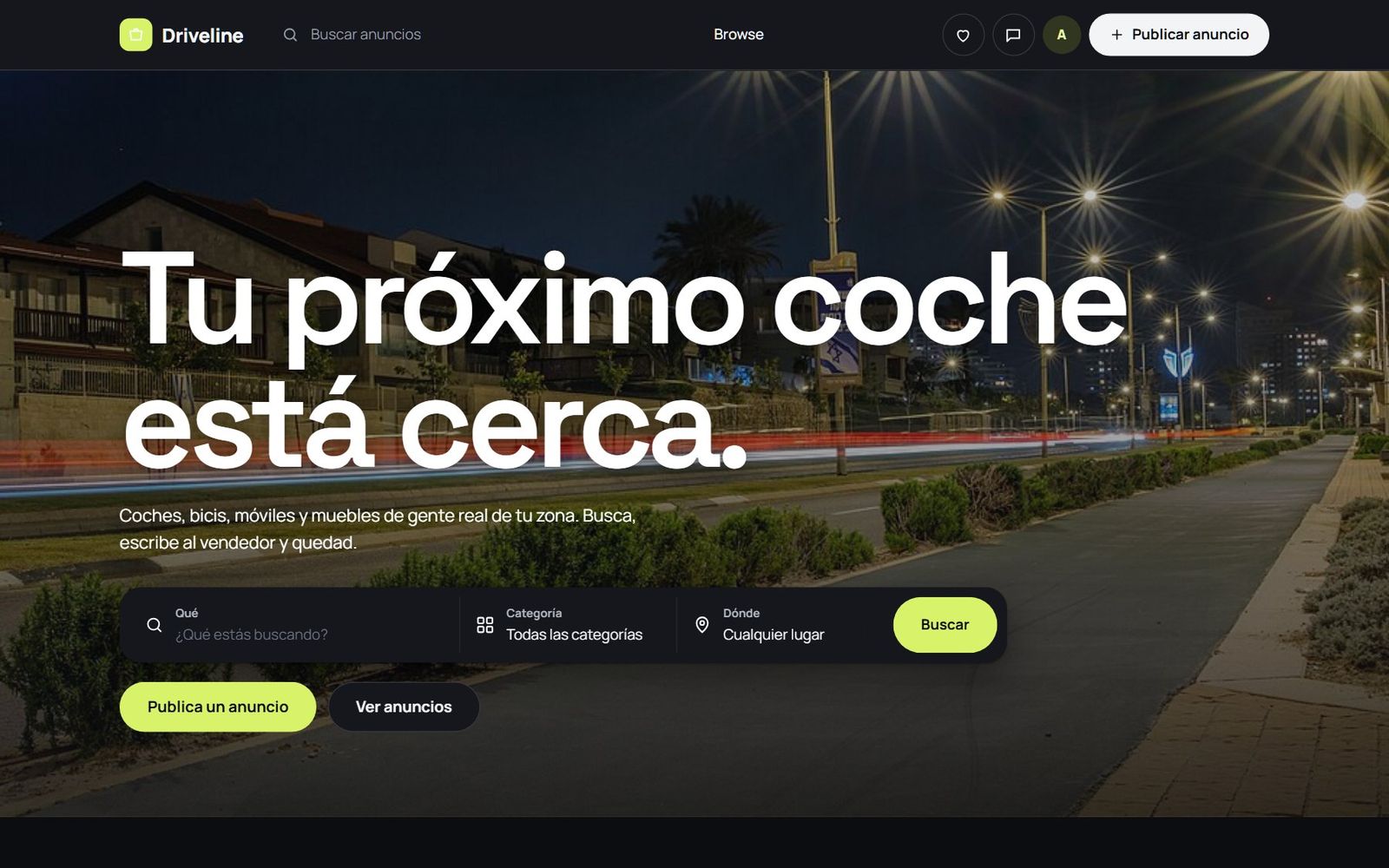
Visitors browsing in Spanish see the Spanish texts; everyone else keeps the English. The AI was honest about what it skipped ("the quotes and the three trust reasons are still in English") and offered to finish them. Here's the published Spanish home page:
Previewing: desktop, tablet, phone and side by side
You never have to publish to see what something looks like.
- Desktop, Tablet and Phone redraw the preview at 1280, 834 and 390 pixels wide. You can also drag to try any width from 320 to 2560 pixels. The Studio remembers your last choice.
- Compare shows the live site beside your draft, scrolling together, so you can see exactly what you're about to change.
- Preview opens the draft in a new browser tab, full size, so you can click around as a visitor would.
- Share preview creates a link that shows your draft to anyone for 7 days, without logging in. Send it to a partner or a friend for a second opinion. Your visitors still see the live version, and you can stop sharing earlier links at any time.
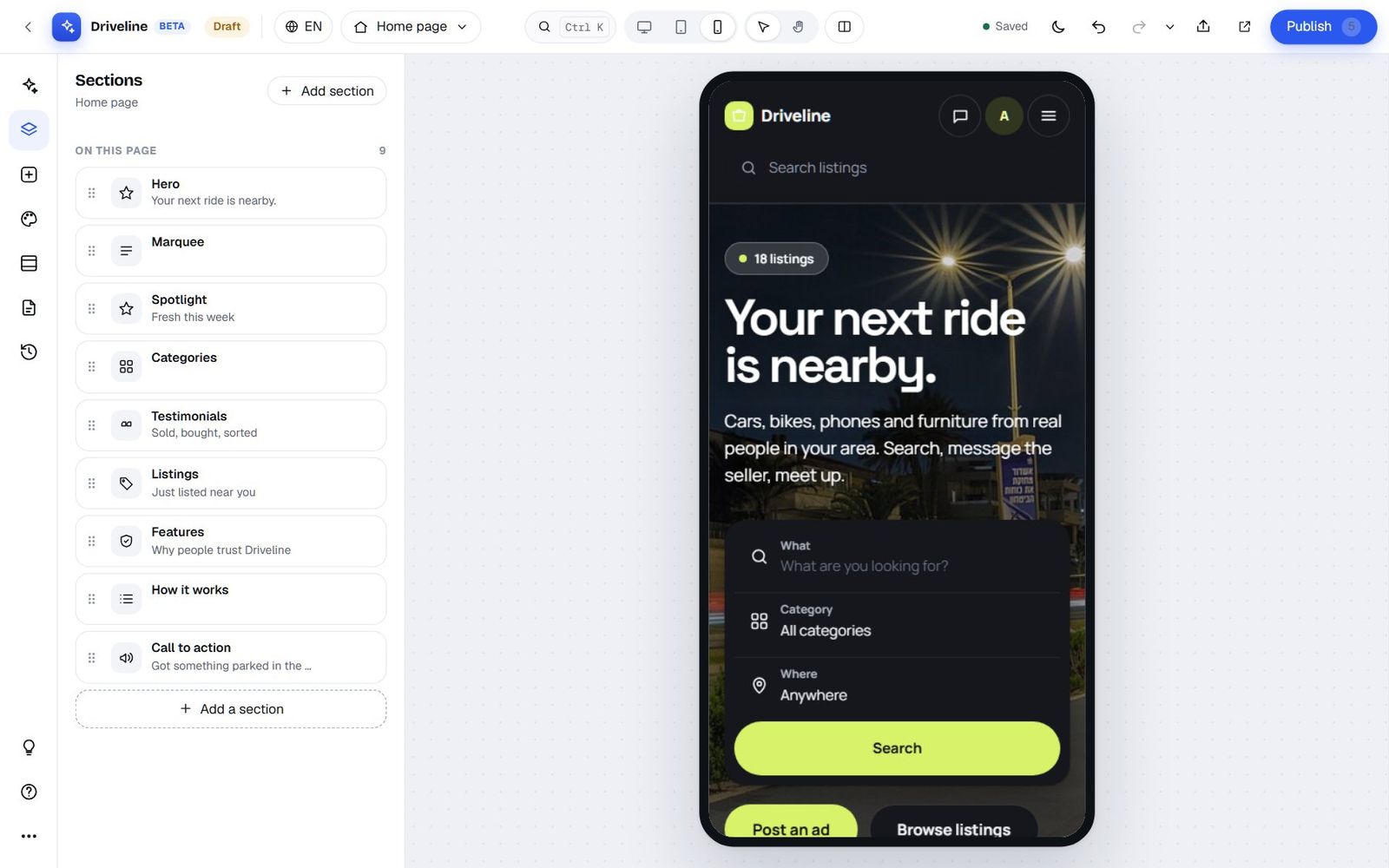
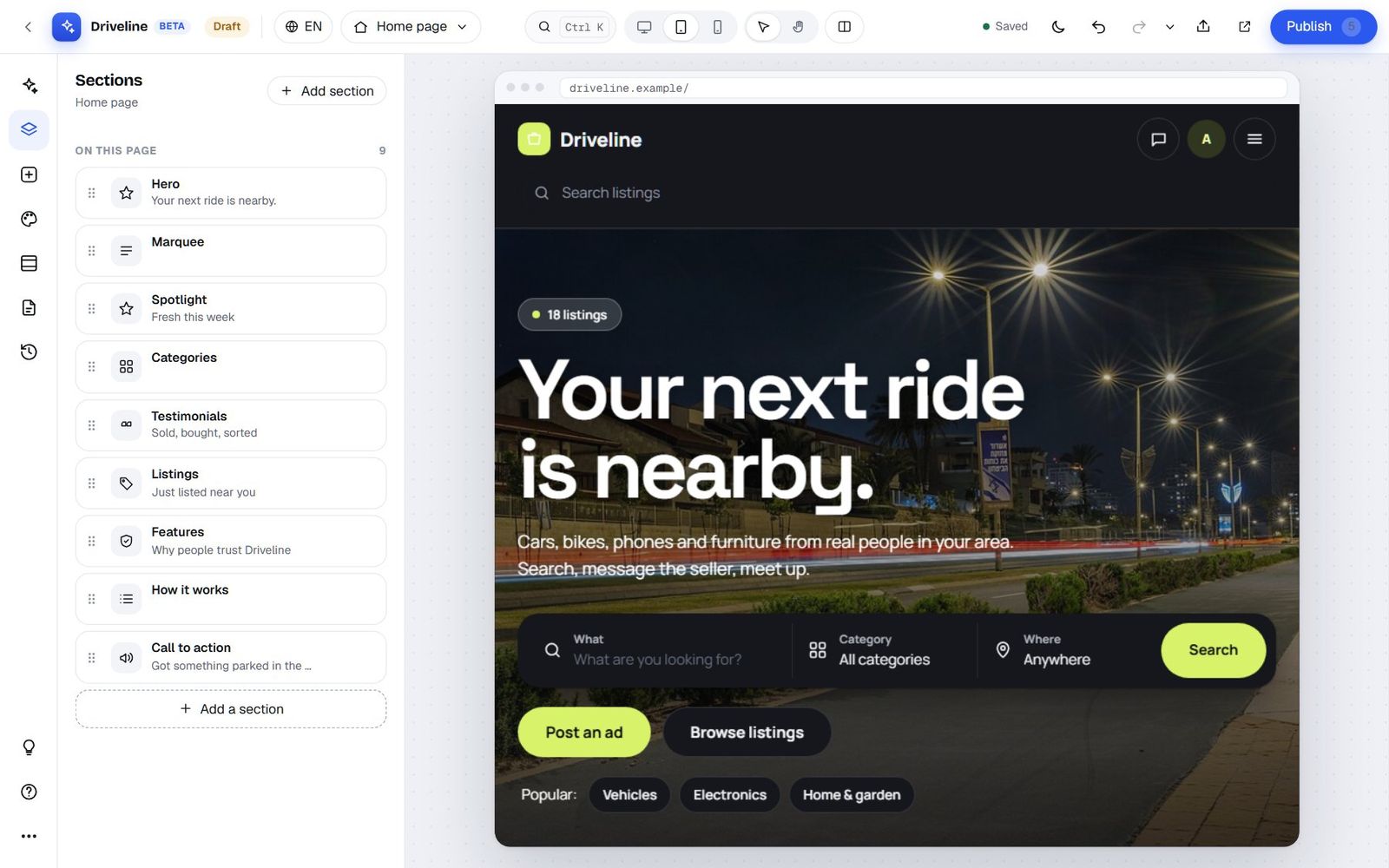
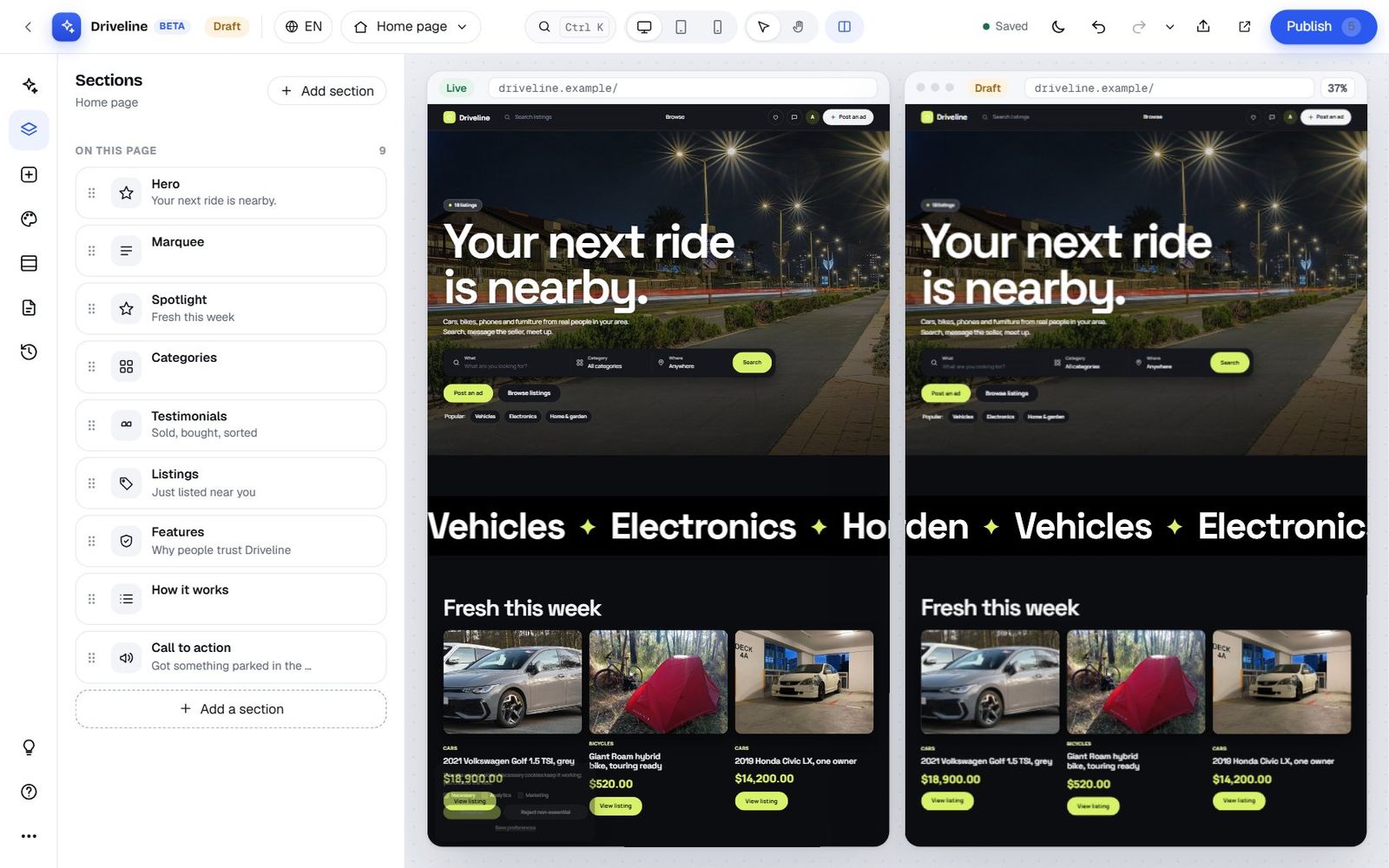
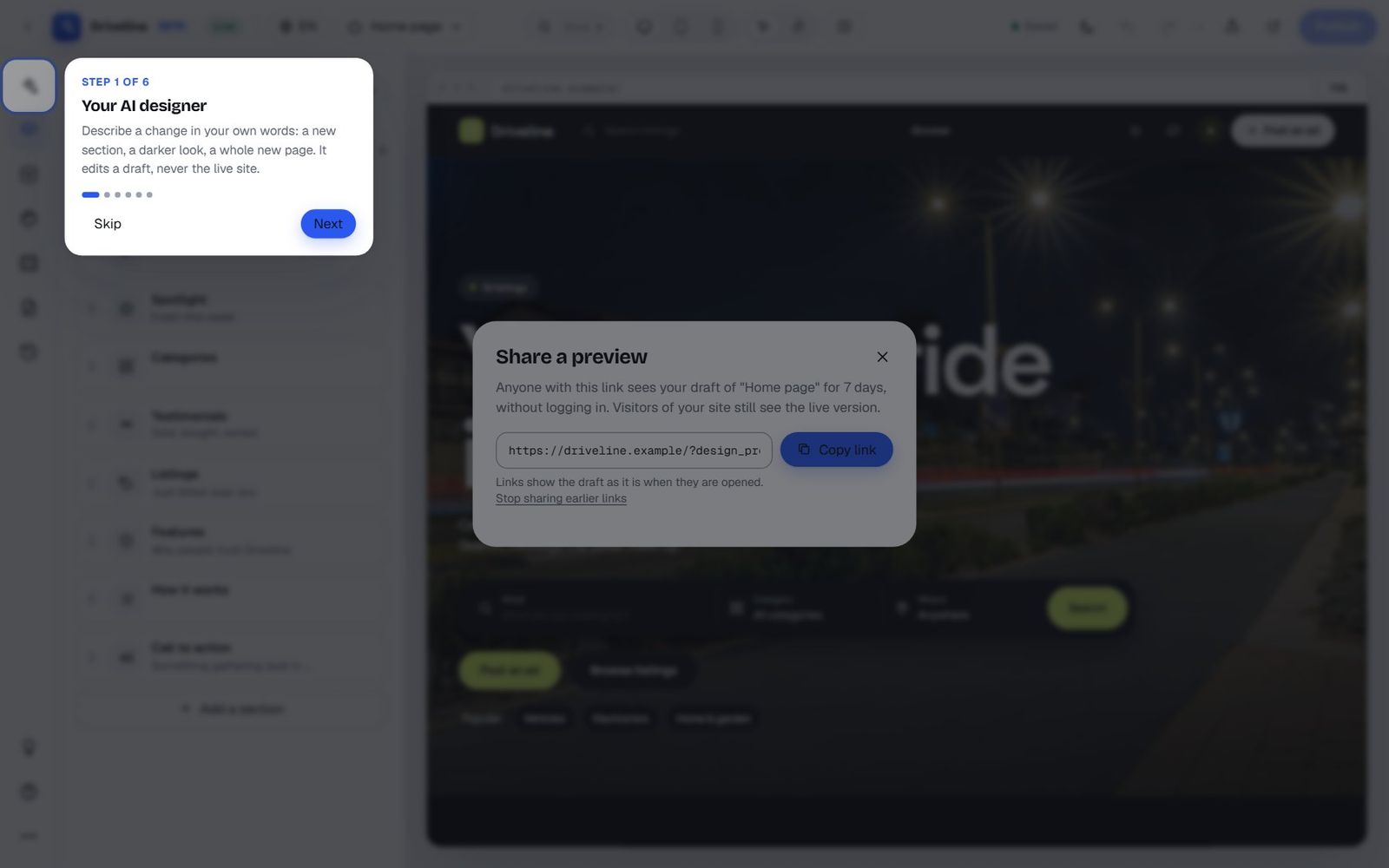
You can even use the Studio on a phone. It shows the panels, with a floating Preview / Edit switch to flip between them.
The safety net: why you can't really break anything
The fear with any site builder is pressing the wrong thing and losing a week's work, or worse, taking the site down for your visitors. The Studio has several layers of protection, and it's worth knowing they're there so you can experiment freely.
Autosave
Every change saves itself to the draft within moments. The top bar shows Saving…, Saved or Not saved, and Ctrl S saves on demand. If your connection drops, the Studio tells you and tries again; if your login expires, it asks you to log in again without losing your work.
Undo, redo and the undo history
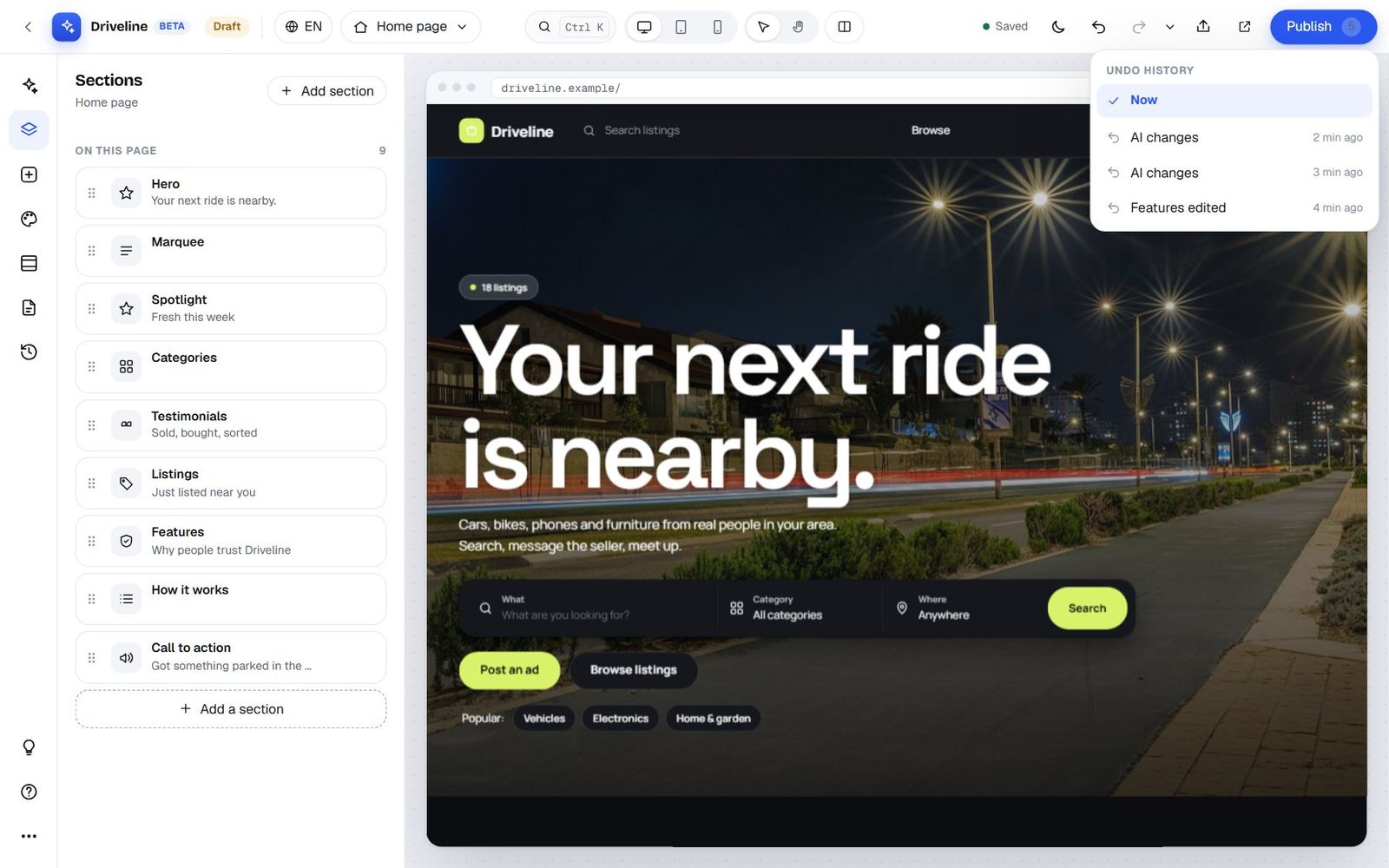
Ctrl Z undoes, Ctrl Shift Z (or Ctrl Y) redoes. The little arrow next to redo opens the Undo history: a list of your recent changes, each with a name and time ("AI changes, 2 min ago", "Features edited, 4 min ago"). Click any line to jump back to that point.
Versions and History
Every time you publish, the version is kept. The History panel shows your Draft, the Live version and up to 20 Earlier versions, each with the note you wrote when you published it. Preview any of them, or Restore one to make it live again. Unpublish takes your design off the site and goes back to the standard Nova design (your versions are kept), and Delete draft throws away unpublished changes without touching the live site.
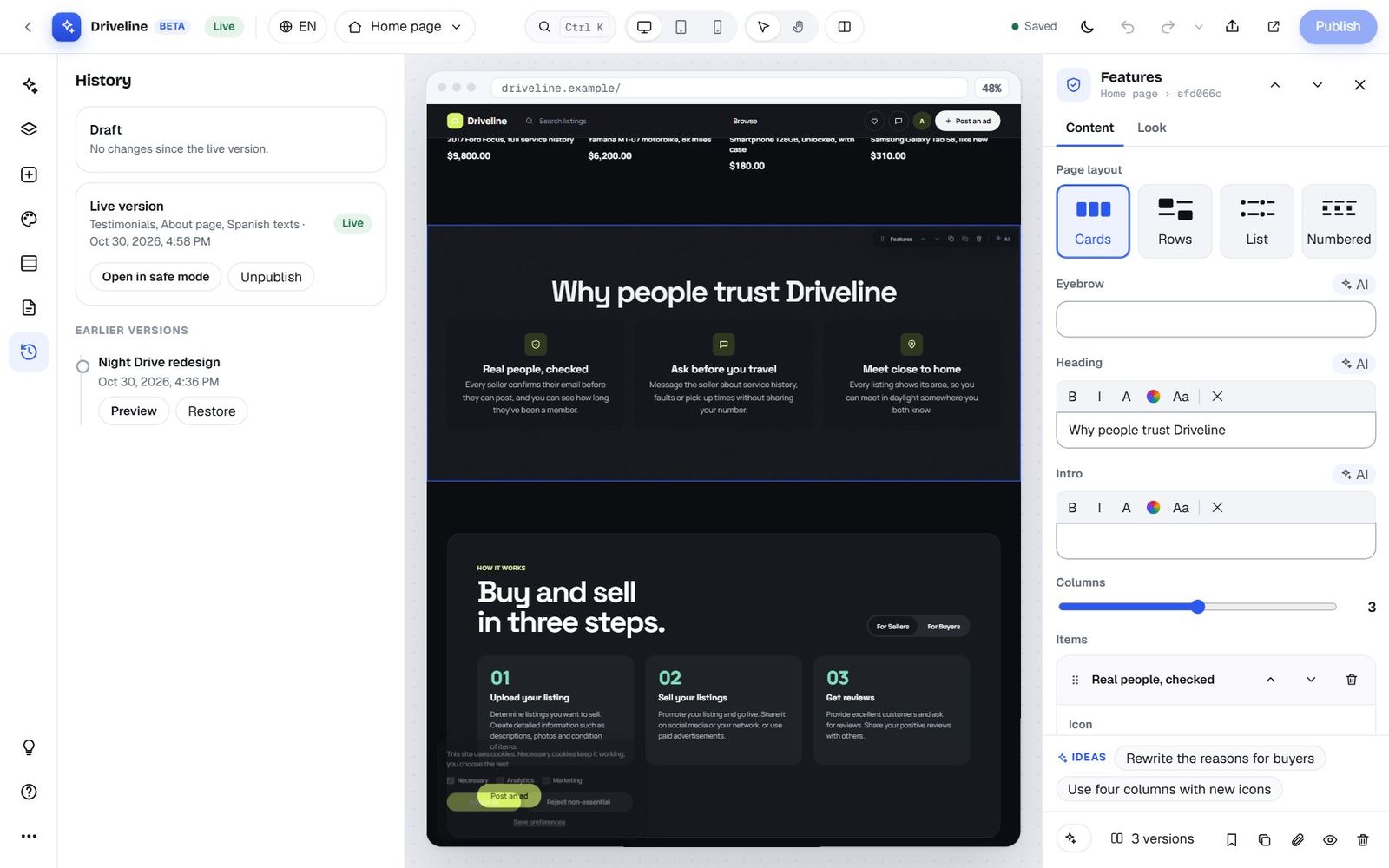
Hover over a version and you see a small preview of it, so you can find "the one from before the redesign" without opening each.
Safe mode
In the History panel and the More menu, Open in safe mode shows your site without any of the design's custom code. If a script ever misbehaves, safe mode lets you see and fix the site. Your login pages never run design code at all, so a broken script can't lock you out of your own admin.
A check after every publish
Right after you publish, the platform loads your home page and your newest listing. If either one is broken, it puts back what your visitors saw before and tells you what went wrong. You'd have to try quite hard to publish a broken site.
Two admins, one draft
If someone else on your team (or you, in another window) opens the Studio at the same time, you'll see their avatar with "is also editing". If the draft changes somewhere else, the Studio says so and offers Load the latest instead of overwriting their work.
Publishing: now or later
When you press Publish, the dialog gives you a clear summary before anything goes live:
- What changed since the live version, page by page: sections added, edited, removed or reordered, style changes, custom code, page texts, the site frame, categories and locations. The Publish button shows the number of changes too.
- Things to look at: quick checks for an accent colour too light for white button text, text too close in colour to its background, images or links that start with http:// instead of https://, links left as just "https://", placeholder text such as "lorem ipsum" or "customer name", and empty custom code sections. They're advice, not blockers: you can still publish.
- What changed (optional): a short note that becomes the version's name in History.
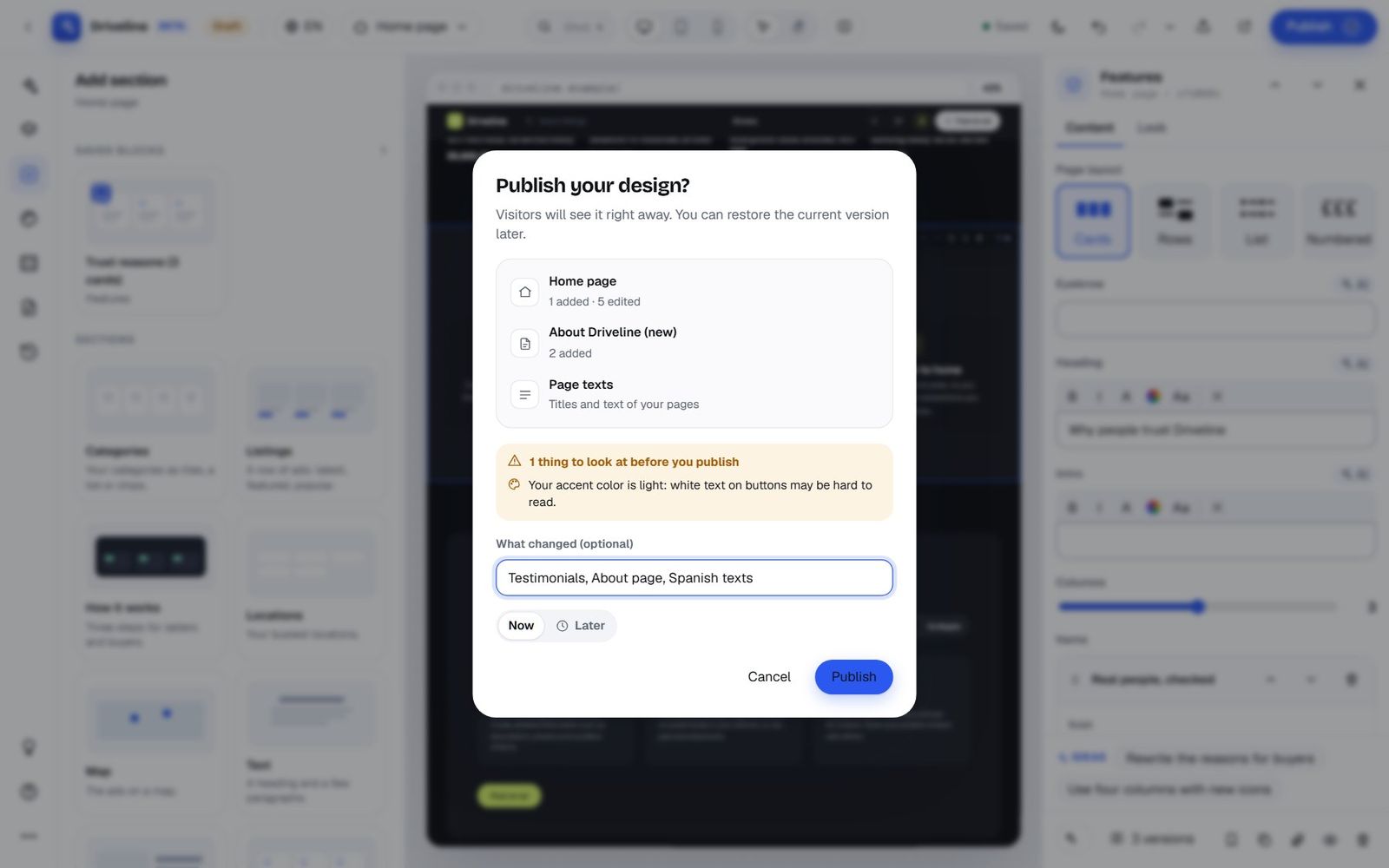
If the draft adds or changes code that runs on your site, the dialog asks you to Confirm the code changes first, and explains why: code you didn't ask for, such as scripts from other websites, could send your visitors' data elsewhere. Press I checked it: publish when you're happy.
Publish later
Choose Later instead of Now to schedule the publish: anything from a couple of minutes to 90 days ahead, in your own time zone. It's perfect for a seasonal look that should go live on the first of the month, or a redesign you want to launch on Monday morning.
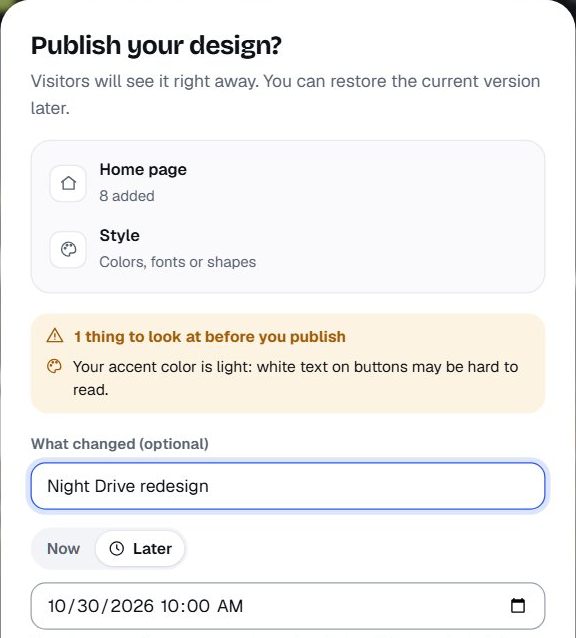
The Studio shows Scheduled to publish with the date until then, and you can cancel the schedule at any time. One thing to know: the schedule publishes the draft as it was when you scheduled it. If you keep editing afterwards, the Studio warns you that those edits aren't included and offers to schedule again (or publish now) to include them.
Saved blocks: design once, reuse anywhere
Made a section you love? Select it and press Save as block (the bookmark). Give it a name and it's kept "with its texts and look, to add it again on any page".
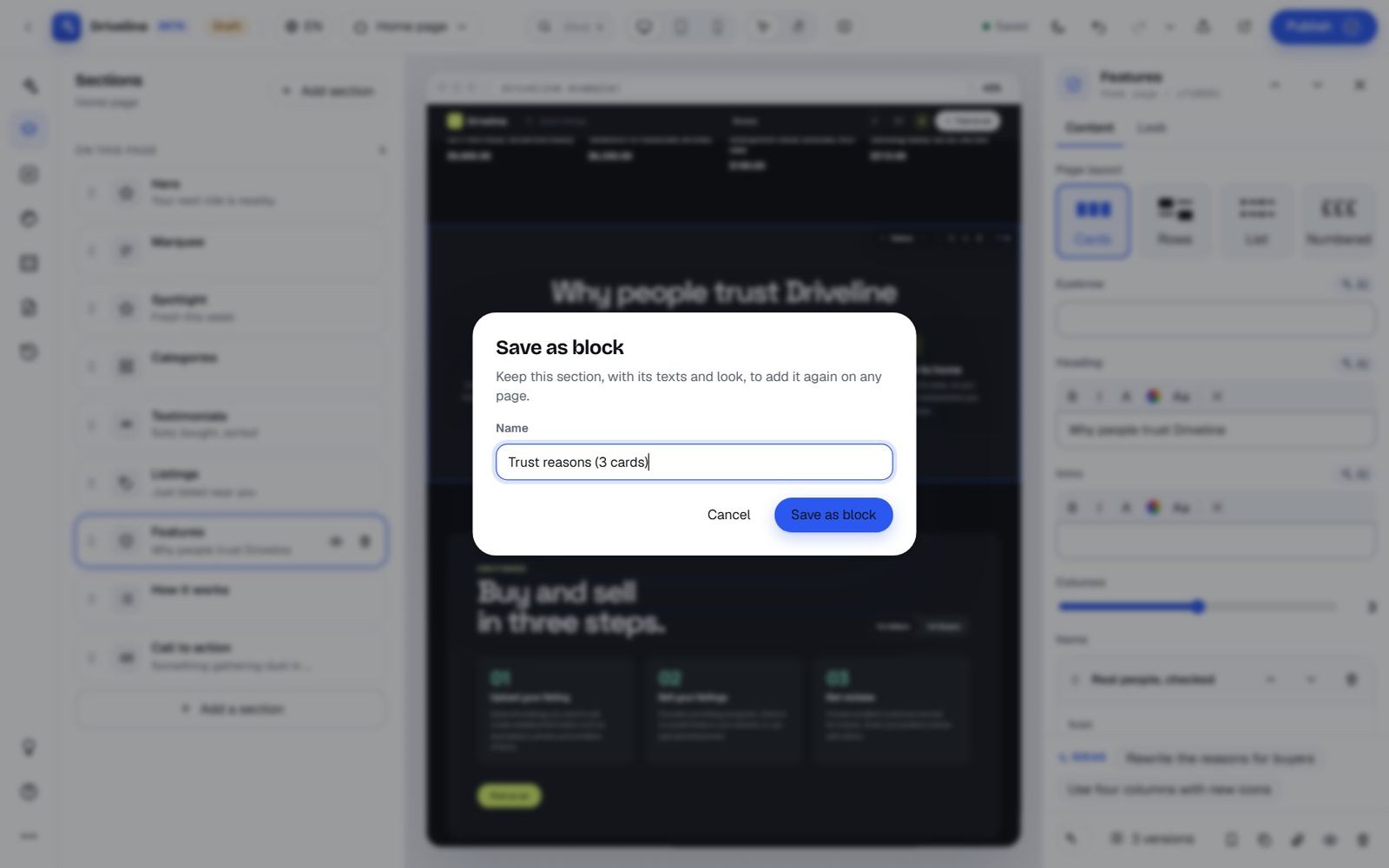
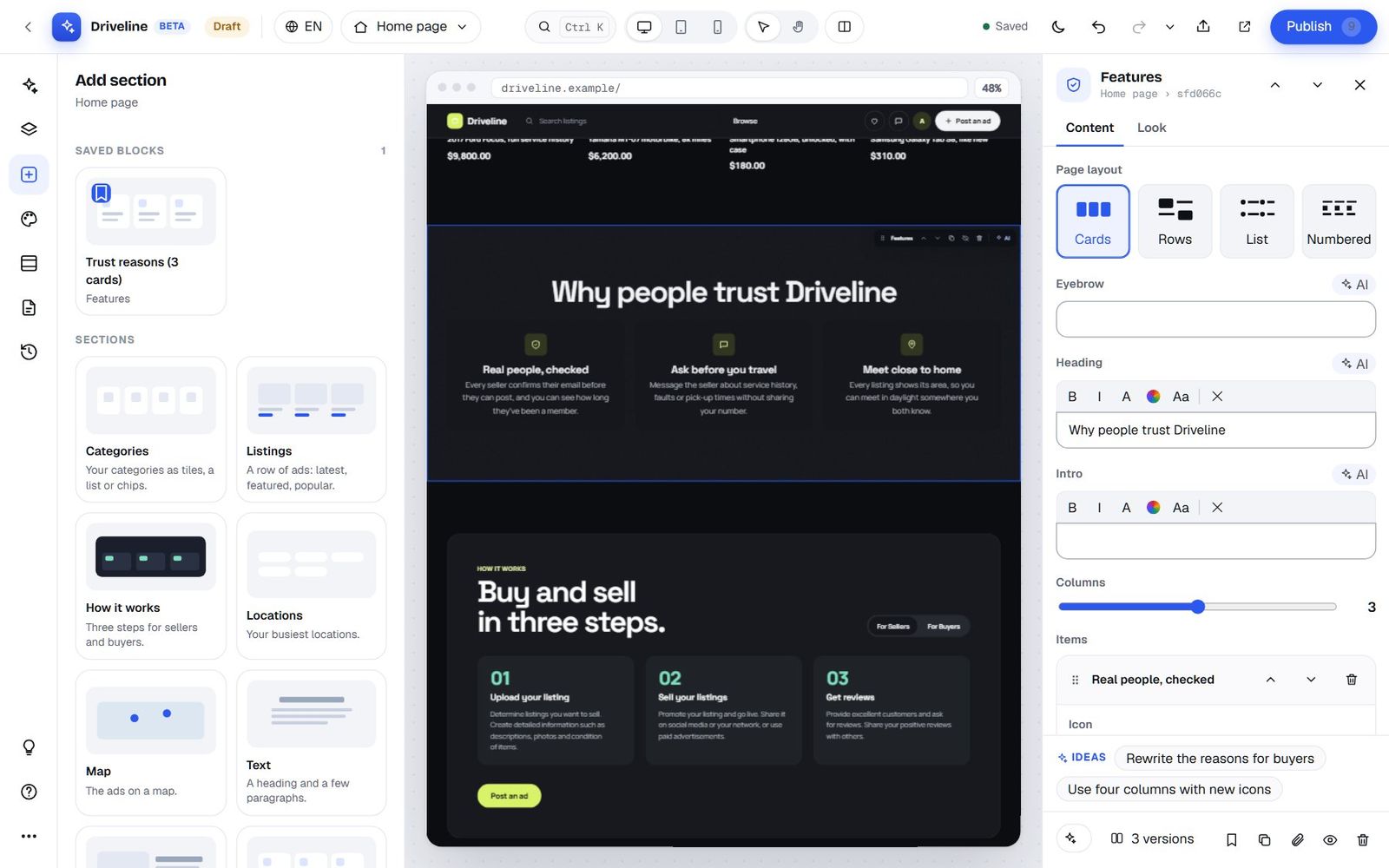
Saved blocks appear at the top of Add section, in the + picker on the page and in the Ctrl K palette. You can keep up to 40. Deleting a block doesn't touch the copies already on your pages. The hero, page text and your own homepage HTML can't be saved as blocks.
Power tools for people in a hurry
Search or jump to anything: Ctrl K
Press Ctrl K (Cmd K on a Mac) anywhere in the Studio and a palette opens. Type a few letters to find any action, view, panel, page, section on the current page, saved block, section type to add, look, colour theme or font pairing.
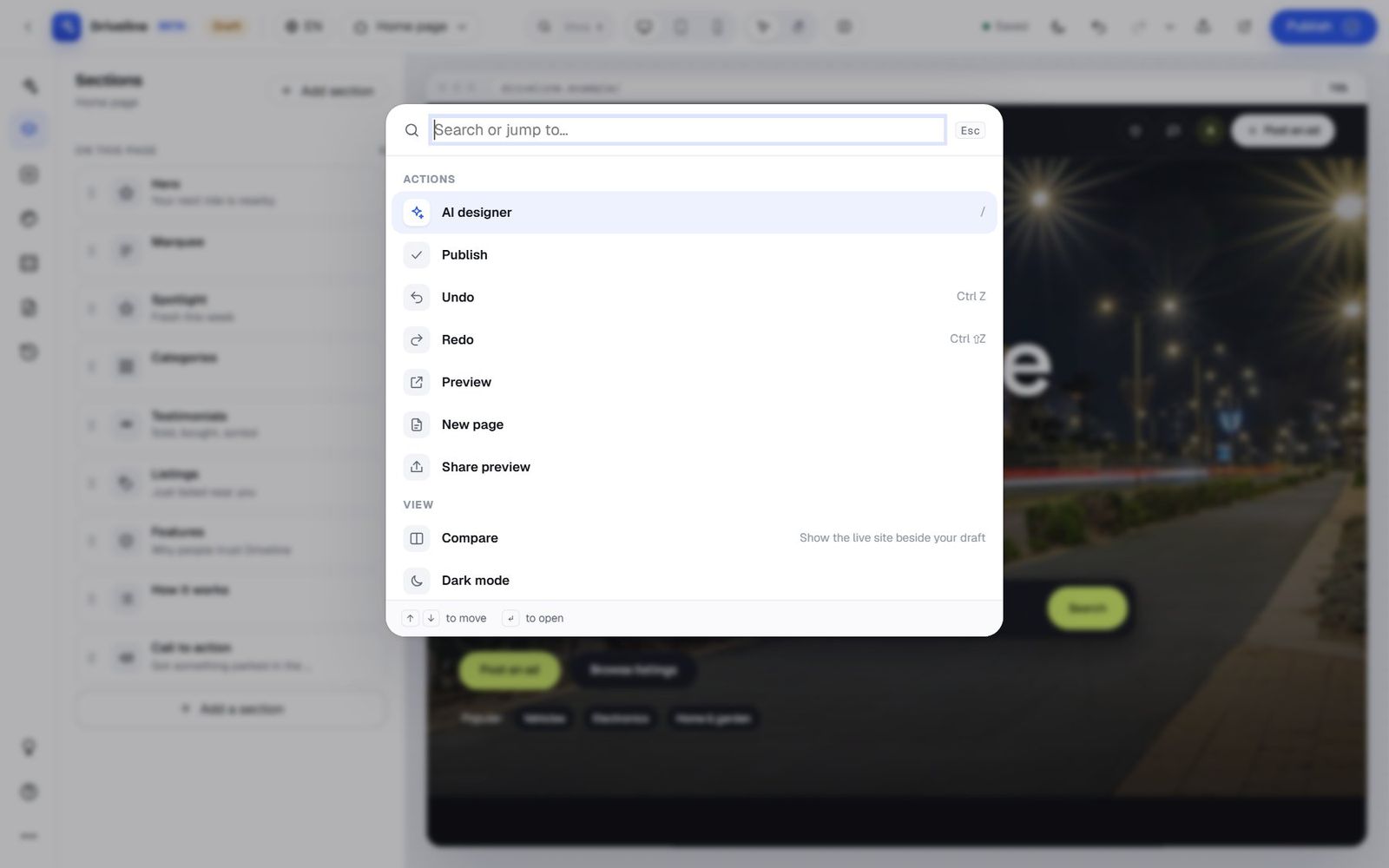
Typing "testim", for example, offers both the Testimonials section already on the page and "Add section: Testimonials".
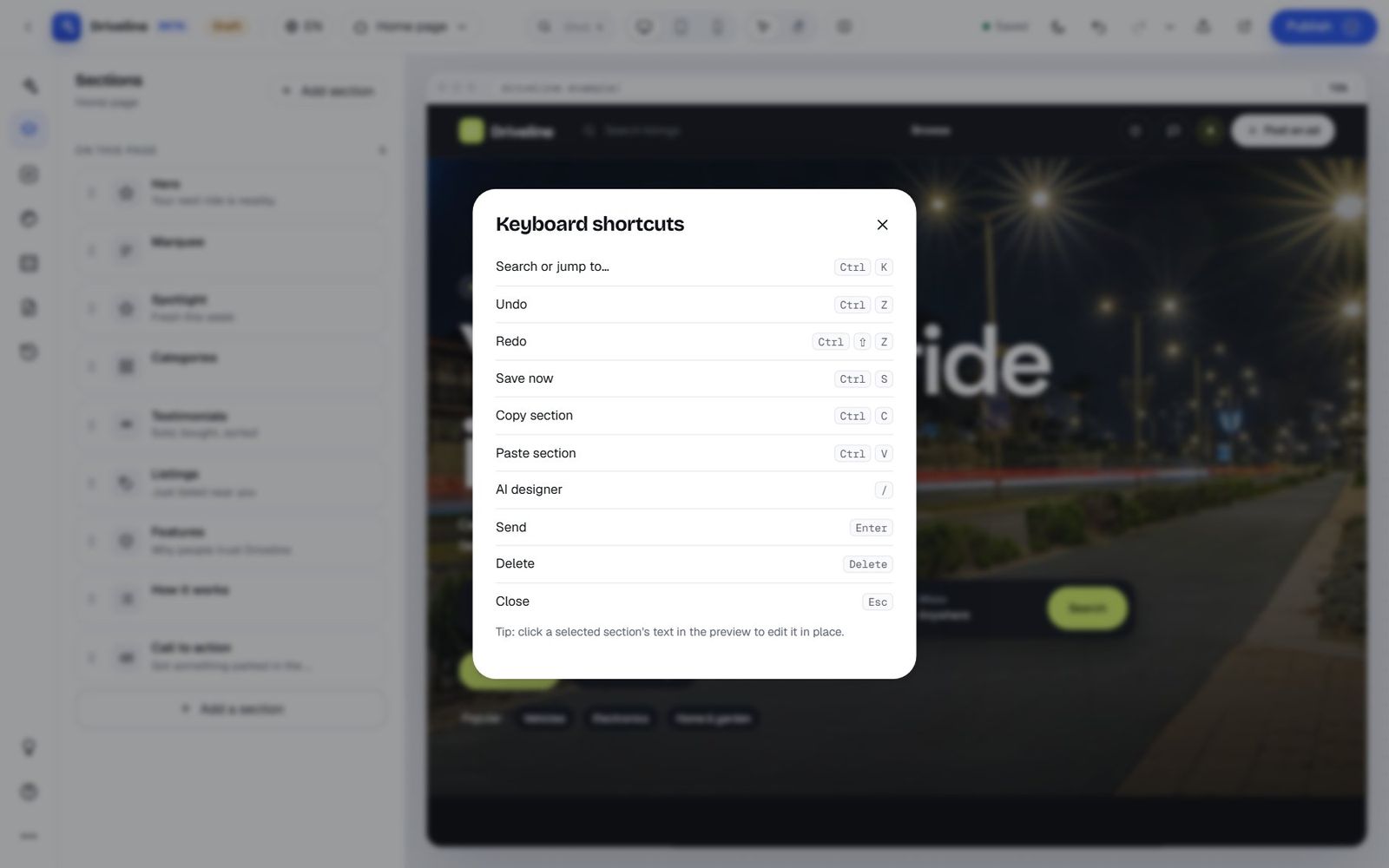
Keyboard shortcuts
| Keys | What they do |
|---|---|
| Ctrl K | Search or jump to… |
| Ctrl Z / Ctrl Shift Z | Undo / redo |
| Ctrl S | Save now |
| Ctrl C / Ctrl V | Copy / paste a section |
| / | Open the AI designer |
| Enter | Send a message (Shift Enter for a new line) |
| ↑ / ↓ | Select the previous or next section |
| Alt ↑ / Alt ↓ | Move the selected section |
| Delete | Delete the selected section |
| Esc | Close or deselect |
On a Mac, use Cmd in place of Ctrl. The full list is in More › Keyboard shortcuts.
Dark mode
The moon in the top bar switches the Studio itself to dark mode (it follows your computer's setting until you choose). Your site's preview keeps its own look, of course.
The More menu
The three dots at the bottom of the rail hold the extras: Design code (JSON) for developers who want to see or edit the whole design as data, Classic view (a simpler overview page), Open in safe mode, Suggest a feature, Get help, Take the tour and Keyboard shortcuts.
Accessibility, built in
The Studio works with a keyboard alone: dialogs keep focus inside them and give it back when they close, menus move with the arrow keys and close with Escape, and messages are announced to screen readers. And it nudges your site to be accessible too: alt text on every image, contrast warnings in the Look tab and before publishing, the AI's own audit of small text and tap targets, and motion effects that switch off for visitors who ask their device to reduce motion.
Help when you need it
Get help, with your draft attached
Stuck? Press the question mark in the rail. Get help sends a request to our support team, and "our team will see what you see: the page, the section you have selected and your draft". Write what you need, and choose whether to Include my recent conversation with the AI. Your request opens a support ticket in your Yclas account with a private 7-day link to your draft, so nobody has to ask "which page do you mean?". We usually answer within one working day.
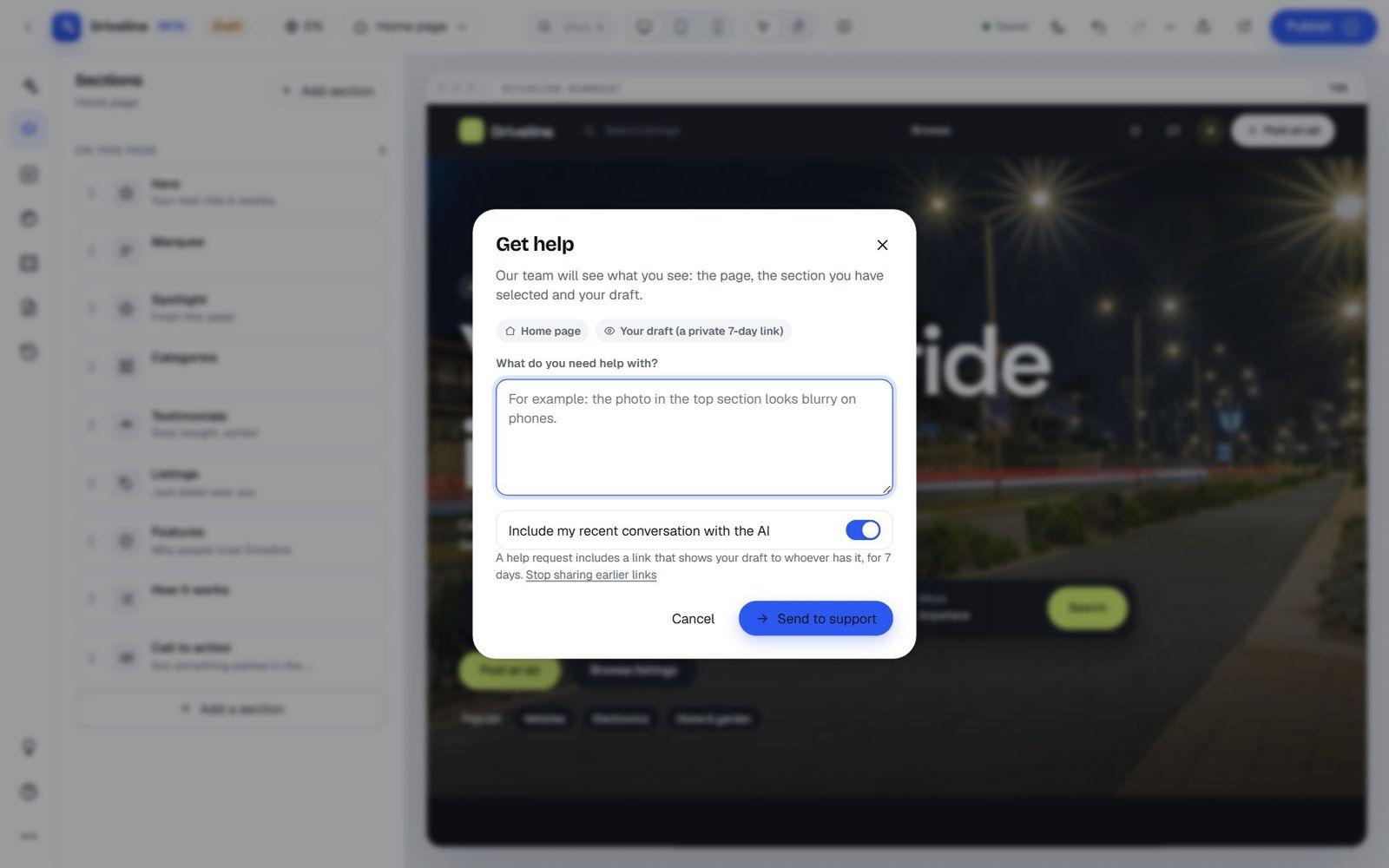
Help requests need a plan that includes support tickets.
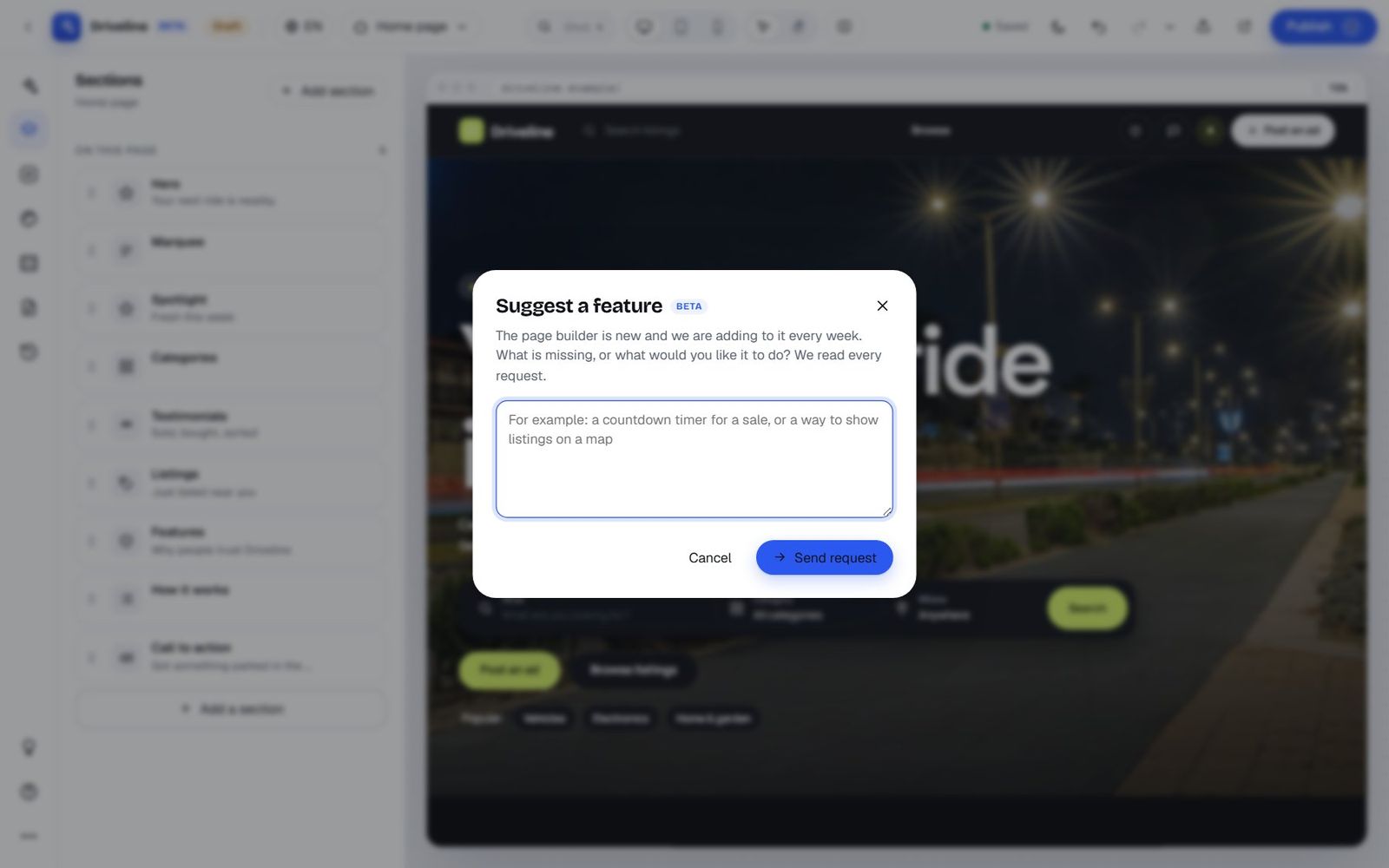
Suggest a feature
The light bulb opens Suggest a feature. "The page builder is new and we are adding to it every week. What is missing, or what would you like it to do? We read every request." When something you asked for is added, we email you.
Plans, allowances and what an "AI edit" is
The page builder is part of the Starter plan and up, and free trials get it too. Editing by hand is unlimited on every plan: dragging, typing, changing colours, applying looks and templates never use your AI allowance. What's counted is work the AI does for you.
| Plan | AI edits |
|---|---|
| Free trial | 5 for the whole trial |
| Starter | 30 in your first month with the builder, then 15 a month |
| Professional | 75 a month |
| Marketplace | 150 a month |
Allowances reset on the 1st of each month. The bottom of the AI designer shows how much you've used ("AI this month: 9% used · resets November 1"), warns you when you're running low, and when the month's allowance is used up you can still edit by hand and publish as usual. The amounts above are the ones at the time of writing; your site's AI page in the admin always shows your plan's current numbers.
An AI edit is one step of the AI's work, not one message. A small request ("make the button orange") is usually a step or two. A full redesign, where the AI reads your site, picks a style, builds eight sections and checks the result, takes several. That's why big redesigns are best done as one clear request, and why a fresh conversation for a new topic saves allowance. Each Write with AI rewrite also counts as one edit. Big design jobs automatically use a stronger AI model that plans the page before building it, so redesigns come out noticeably better.
Ten tips from owners who use it every day
- Start with a look, then talk. Apply the look or template closest to what you want first (it's free), then ask the AI for the differences. You'll use fewer AI edits and get there faster.
- Describe the visitor, not the pixels. "First-time sellers who are nervous about meeting strangers" gives the AI more to work with than "add a blue box".
- Try every direction. The Try button is free and instant. You'll often like the one you didn't expect.
- Use point mode for small fixes. Pointing at the exact heading beats describing it.
- Fix single words by hand. Clicking and typing is quicker than a message, and it's unlimited.
- Check the phone view before every publish. Many of your visitors will see that version first.
- Name your versions. "Black Friday look" in the publish note makes History easy to read a month later.
- Replace sample testimonials with real ones. Ask your best buyers for a sentence each. Real names and real towns sell.
- Save your best sections as blocks. A great FAQ or trust section is worth reusing on your listing and post-an-ad pages.
- Start a new conversation when you change subject. It keeps the AI focused and your allowance healthy.
Frequently asked questions
Do I need to know anything about design or code?
No. Describe what you want the way you'd explain it to a friend who's good at design. Everything you can do with code, you can also ask the AI to do.
Will the AI change my live site without asking?
Never. The AI only edits your draft. Your visitors see changes only when you press Publish (or when a publish you scheduled goes live).
Can I undo something the AI did?
Yes, in several ways: the Undo button at the end of each AI turn, Ctrl Z, the Undo history, or by restoring an earlier published version from History.
Does it work on my theme?
The full builder works on the Nova theme, the default for new Yclas sites. On older themes you can still edit your site's name and logo, categories, locations and pages, and the theme's main colour. Switching to Nova keeps your listings, users and settings.
Can it write in my language?
Yes. Write to the AI in your own language and it answers in it. On multilingual sites it writes and translates the texts for each of your site's languages.
Will my listings and categories look right after a redesign?
Yes. Sections like Listings, Spotlight, Categories, Stats and Top sellers show your real, live content, so a new design always shows your actual ads.
Is my site still fast?
Sections are built into the theme rather than bolted on, videos load only when someone presses play, and if speed matters above all, the Lite look strips effects and most photos for slow connections.
What happens to my design if I change plans?
Your design stays live. If a feature isn't in your new plan (custom code sections, for example), existing ones are kept but hidden, and you can edit everything else as usual.
Can I get help from a person?
Yes. Press Get help in the Studio, and our team sees your page and draft. We usually answer within one working day.
Your turn
The quickest way to understand the AI page builder is to open it. Pick a look, ask for one change, try a direction, and look at it on your phone. Nothing goes live until you say so, and everything can be undone, so there's no wrong first move.
If you already have a Yclas site, open your admin panel, go to AI › AI page builder and say hello. If you don't yet, start a free trial: your site comes with the Studio and five AI edits to try it. You can read more about every AI feature on the Yclas AI page and the AI page builder page.
And when you find something it can't do yet, tell us with Suggest a feature. That's how this builder got most of what's in this guide.